InDesign Footnotes: Fix the Extra "1." After Word Import
This article is also available as a short video on YouTube: InDesign Footnotes from Word: Remove the Extra "1." Before Each Note
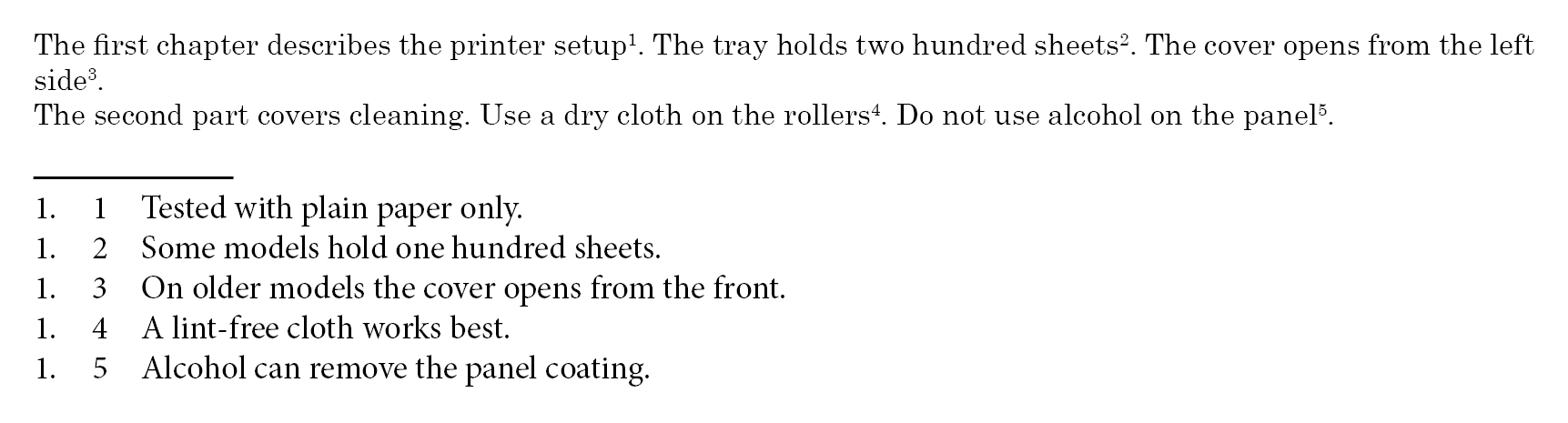
You place a Word file with footnotes, and every footnote in InDesign starts with "1." The real footnote number follows it, so the notes read "1. 1", "1. 2", "1. 3".
In my test files, the footnote paragraphs already had list numbering in Word. After import, InDesign displayed an extra "1." before each automatic footnote number.
Check one footnote
Click in the text of a footnote. If the paragraph has list numbering, the Numbered List button is on in the Control panel (paragraph formatting controls) and in the Bullets and Numbering section of the Properties panel. The fixes below are for this case.
If you can select the extra number with the cursor, it is text, not list numbering. Two things produced that in my tests: the Convert Bullets & Numbers to Text import option, and custom footnote marks in Word (see "Other numbering problems" below).
Which fix to use
- If you can place the manuscript again and none of the footnotes contains a numbered list you need to keep, remove the numbering in Word.
- In an existing layout, use Find/Change only when every numbered paragraph in the document, in the main text and in the notes, can lose its numbering.
- If the main text has numbered lists you need, use the script, after checking that no footnote contains a numbered list you want to keep.
If some footnotes contain numbered lists you need to keep, remove the unwanted numbering from the affected paragraphs one at a time: click in the paragraph and turn off Numbered List in the Control panel. In my test the extra "1." disappeared and the footnote number stayed.
Fix it in Word and place the file again
Turning off numbering throughout the footnotes also removes numbered lists you meant to keep.
Select all of the footnote text in Word, check that the selection covers only the footnotes, and turn off Numbering on the Home tab.
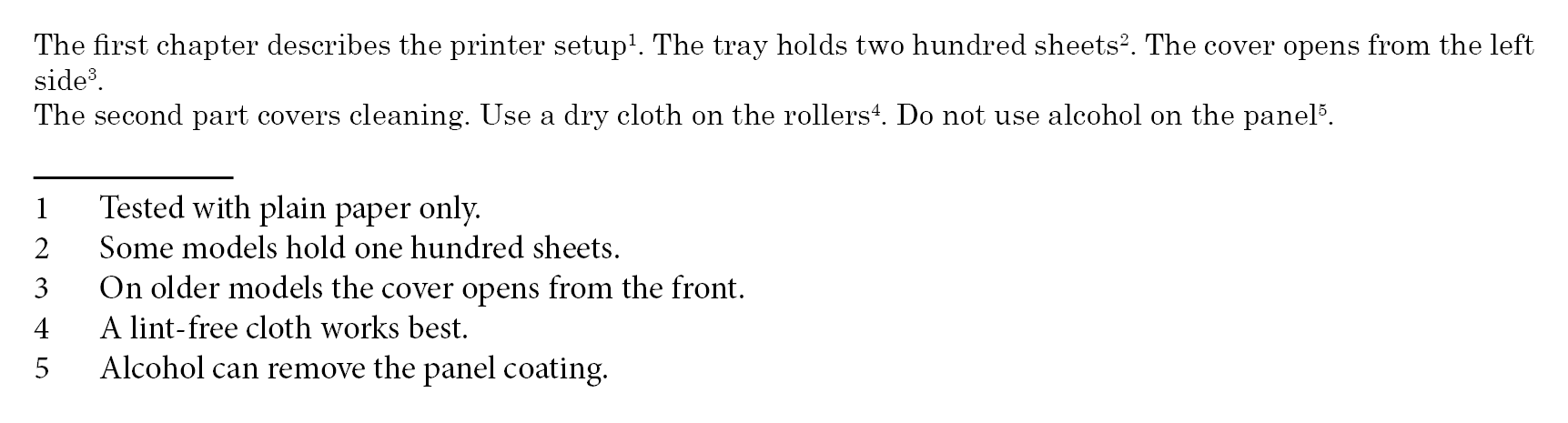
When I placed the file again, the footnotes were numbered 1 to 5 with no "1." in front. This also worked when the numbering came from the Footnote Text style.
Fix it in InDesign with Find/Change
- Open Edit > Find/Change and go to the Text tab.
- Leave Find what and Change to empty. If Find Format or Change Format still holds settings from an earlier search, clear them with the Clear specified attributes button (the trash icon) next to each box.
- Set Search to Document and turn on Include Footnotes.
- Click Specify attributes to find next to Find Format. In Find Format Settings, choose Bullets and Numbering and set List Type to Numbers.
- Click Specify attributes to change next to Change Format. In Change Format Settings, choose Bullets and Numbering and set List Type to None.
- Click Change All.
Include Footnotes adds footnote text to the search. It does not limit the search to footnotes. In my test this search also removed the numbering from two numbered steps in the main text.
Fix it in InDesign with a script
This script removes numbered-list formatting from every footnote paragraph in the open document. Numbered lists in the main text stay, and so do bulleted lists in footnotes.
Save a copy of the document first. The script also removes numbered lists inside footnotes that you meant to keep. It works on the active document only, so for a book, open and run it on each chapter.
// Remove numbered-list formatting from every footnote paragraph in the active document.
// Numbered lists in the main text and bulleted lists in footnotes are left as they are.
// Numbered lists you meant to keep inside footnotes are removed too.
// Run it from the Scripts panel with the document open. Undo it with one Edit > Undo.
#target indesign
(function () {
  if (app.documents.length === 0) {
    alert("Open a document first.");
    return;
  }
  var doc = app.activeDocument;
  var count = 0;
  app.doScript(function () {
    var stories = doc.stories;
    for (var i = 0; i < stories.length; i++) {
      var notes = stories[i].footnotes;
      for (var j = 0; j < notes.length; j++) {
        var paras = notes[j].paragraphs;
        for (var k = 0; k < paras.length; k++) {
          if (paras[k].bulletsAndNumberingListType === ListType.NUMBERED_LIST) {
            paras[k].bulletsAndNumberingListType = ListType.NO_LIST;
            count++;
          }
        }
      }
    }
  }, ScriptLanguage.JAVASCRIPT, undefined, UndoModes.ENTIRE_SCRIPT, "Remove footnote numbering");
  alert(count + " footnote paragraph(s) changed.");
})();
Save it as a .jsx file in your Scripts Panel folder and double-click it in the Scripts panel.
What it did in my tests:
- Five notes with the extra "1.": all five fixed, and two numbered steps in the main text kept their numbers. One Undo brought the extra "1." back.
- A note with two bulleted and two numbered paragraphs added on purpose: the bullets stayed, and the two numbered paragraphs lost their numbers.
- A file with no numbered footnotes: it reported 0.
What the import options change
- Remove Styles and Formatting from Text and Tables removed the extra numbering in my tests, with Preserve Local Overrides unchecked. It also removes other Word formatting, so check what you need to keep first. My earlier test covers what survives when Preserve Local Overrides is checked.
- Convert Bullets & Numbers to Text kept the unwanted numbers as typed text, "1." to "5.", at the start of each note.
What I tested
I made Word files with five footnotes each and placed them into InDesign 2026 on Windows with styles kept and Convert Bullets & Numbers to Text turned off.
| Word file | Footnotes in Word | Footnotes in InDesign |
|---|---|---|
| Normal footnotes | 1 to 5 | 1 to 5 |
| Footnote paragraphs set to a numbered list | List numbers 1. to 5. in front of the notes | "1." in front of every note, then the footnote number |
| List numbering in the Footnote Text style | Same as above | Same as above |
Both files with list numbering produced the extra "1." Word displayed list numbers 1 to 5 across the footnotes. InDesign imported the list formatting, but each footnote displayed "1."
I did not test macOS, older InDesign versions, footnotes in tables, or documents with hundreds of notes.
Other numbering problems
These came up in the same tests but need different fixes.
- Each number appears twice, as "11", "22" in the main text. Numeric custom marks in Word can produce this. In a test file with custom marks 1 to 5, InDesign added its own footnote numbers and kept the custom digits as text after each marker. Check the Word file before you remove anything. A search for digits after a footnote marker can also catch real text, such as a note that starts with a year.
- Numbers start at 1 although the Word file started at 7. In my test the start number did not come across. You can set it in Type > Document Footnote Options, in the Start at box.
Before you send the file
Export a PDF and look at the corrected notes and their references in the main text.