Your First InDesign Script: Which Pages Have Overset Text?
Most InDesign scripting tutorials open with a finished script. This one opens a step earlier: with the smallest useful thing a script can do, and with the decision of what to leave out of it.
The goal is one dialog that tells you which pages of the open document contain overset text. To be precise about what that means, since precision is most of the point here: it checks the text frames that belong directly to each page, and nothing else. It is not a complete document-wide audit. It will not mark anything, it will not fix anything, and it will not write a log file. Those are not missing features. They are the boundary I drew before writing the first line.
If you already write ExtendScript, you may want the production-shaped version I published earlier instead. This post is for the reader who has not yet run a script in InDesign at all.
The one property that does the work
Overset text is text that has nowhere to go. A story contains more than its available frames can display, and the surplus sits outside the layout, invisible. In a single frame it appears once the story exceeds what the frame can hold; in a threaded chain of frames it appears after the last frame in the chain. InDesign shows you this as a red plus sign in the frame's out port.
InDesign already knows. You do not have to measure anything, compare anything, or compose anything. You only have to ask:
textFrame.overflowsIt returns true or false.
Reading the property is the easy part. The work in this post is deciding which objects to ask, and how to report what comes back — which turns out to be where all the interesting decisions live.
Running a script at all
If you have never run one, here is the whole setup.
- Open the Scripts panel: Window > Utilities > Scripts.
- Right-click the User folder and choose Reveal in Explorer (Windows) or Reveal in Finder (macOS).
- Save a plain text file into that folder with a
.jsxextension. - Back in the Scripts panel, double-click the file to run it.
Two things to know before you type anything.
ExtendScript is an old dialect of JavaScript. Roughly ES3. There is no let, no const, no arrow functions, and no Array.prototype.forEach. You write var and you write for loops. Code copied from a modern JavaScript tutorial will often fail here for reasons that have nothing to do with InDesign.
Save it as plain text, and watch two separate things.
The first is your quotes. Many editors, and every word processor, replace straight quotes (" and ') with typographic ones as you type. Those are different characters, and JavaScript will not accept them as string delimiters. If you paste code from a web page and get a syntax error on a line that looks perfectly correct, this is usually why.
The second is the file's encoding. Save as UTF-8, and confirm your editor is actually writing UTF-8 rather than quietly using something else. Older ExtendScript environments can behave inconsistently when a script contains non-ASCII characters, sometimes reporting a syntax error on a line that has nothing wrong with it. Keeping comments in ASCII avoids that particular source of trouble. If you want Japanese or accented text in your dialogs, that is fine — just be deliberate about how the file gets saved.
Step 1: ask one frame
Select a text frame on the page, then run this:
(function () {
    alert(app.selection[0].overflows);
})();
You get a dialog saying true or false. That is the entire mechanism.
The wrapper is worth explaining. (function () { ... })(); defines a function and calls it immediately. Anything you declare with var at the top level of a script goes onto the global object, which is shared by everything running in the same ExtendScript engine — and whether those leftovers outlive your script depends on which engine InDesign used to run it. The wrapper means you never have to know. Your variables stay yours, and the script becomes a self-contained unit you can drop into a larger one later without renaming anything.
This version breaks if nothing is selected, or if you selected a rectangle instead of a text frame. That is fine. It exists to prove the property works, and then it goes away.
Step 2: ask every page
The obvious next move is two loops: every page, and every text frame on that page.
var doc = app.activeDocument;

for (var i = 0; i < doc.pages.length; i++) {
    var frames = doc.pages[i].textFrames;

    for (var j = 0; j < frames.length; j++) {
        if (frames[j].overflows) {
            alert("Overset on page " + doc.pages[i].name);
        }
    }
}
This works, and it is unusable. A document with thirty overset frames gives you thirty dialogs, each one waiting for a click. The script is correct and the experience is wrong, which is a distinction worth learning early.
The fix is to separate finding from reporting. Collect everything first, then say it once.
Note also doc.pages[i].name rather than i + 1. If the document uses sections — front matter in roman numerals, a chapter that restarts at 1 — then i + 1 gives you a number that appears nowhere in the page box, and you will go looking for page 7 and not find it. page.name is the label you actually see in the Pages panel.
The tradeoff is that page names are not guaranteed to be unique. In a document where every chapter restarts at 1, a result of 1, 1, 3 is entirely possible and tells you less than you want. For most documents this never comes up; when it does, you have outgrown this script.
The script
// Reports which pages contain an overset text frame.
(function () {
    if (app.documents.length === 0) {
        alert("Open a document first.");
        return;
    }

    var doc = app.activeDocument;
    var hits = [];

    for (var i = 0; i < doc.pages.length; i++) {
        var page = doc.pages[i];
        var frames = page.textFrames;

        for (var j = 0; j < frames.length; j++) {
            if (frames[j].overflows) {
                hits.push(page.name);   // page.name respects section numbering
                break;                  // one report per page is enough
            }
        }
    }

    if (hits.length === 0) {
        alert("No overset text frames found.");
    } else {
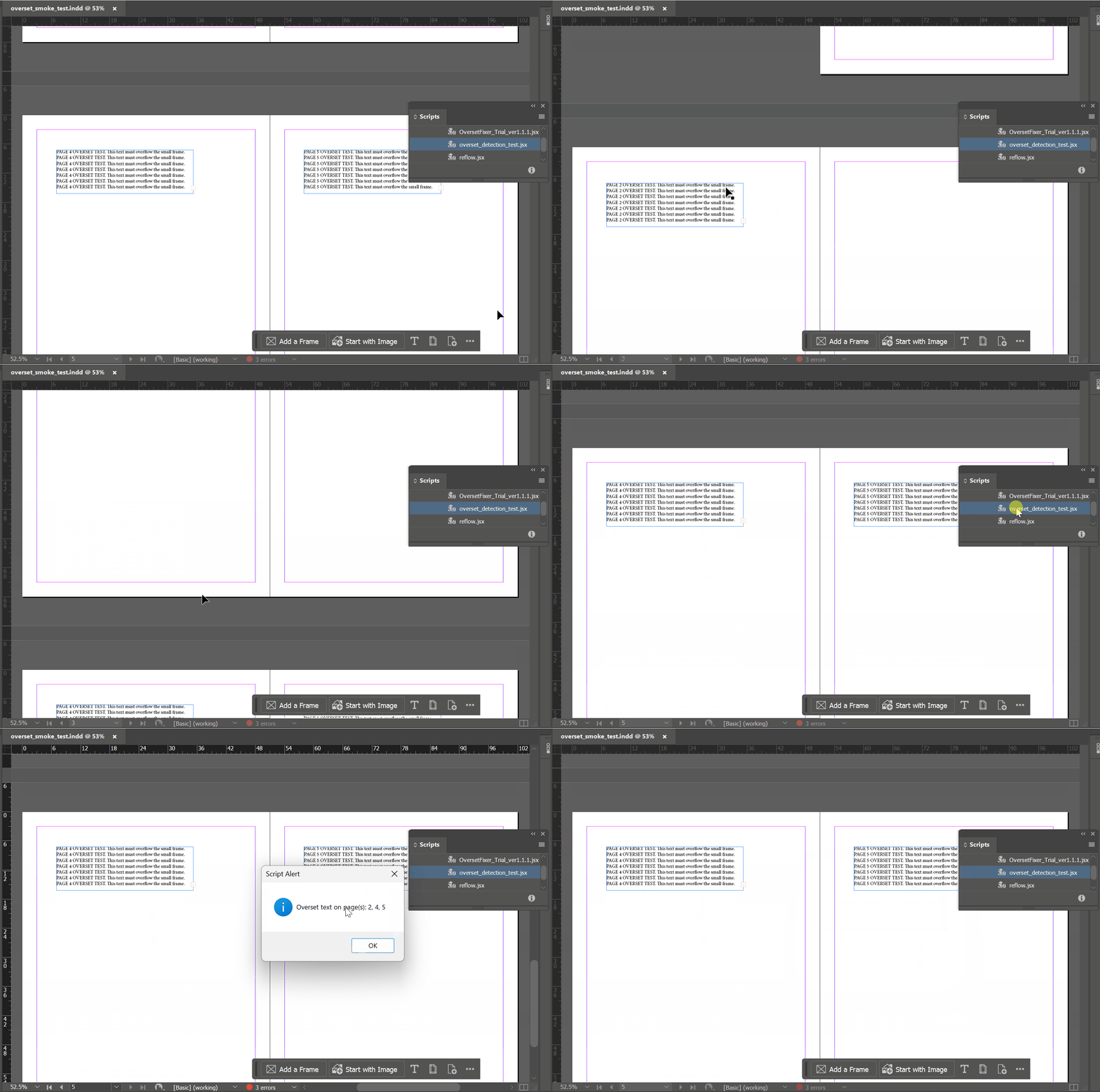
        alert("Overset text on page(s): " + hits.join(", "));
    }
})();
Two lines are worth pointing at.
The break stops scanning a page as soon as one overset frame turns up. You already know the answer for that page, and the question is which pages to look at, not how many frames are involved. It also means each page object is added to the list at most once, without any deduplication logic.
The guard at the top costs three lines and removes an entire class of confusing failure. app.activeDocument throws when nothing is open, and the resulting error dialog says nothing useful to someone who has run four scripts in their life.
What I left out, on purpose
It reports pages, not frames. The question this script answers is "where do I need to look." A page number answers that. A frame identifier would need coordinates or labels to mean anything, and then I would be building a different tool.
It shows a dialog, not a log file. A file needs a path, a format, a write permission, and a story about what happens to it next week. A dialog needs none of those. Every one of them is a decision I did not have to make. The ceiling is real, though: a document with sixty overset pages produces a dialog you cannot comfortably read or copy out of. That is the point at which writing to a file, or building a scrollable window, stops being optional.
It does not fix anything. This is the limit I would defend hardest. Detection and correction fail differently, and at different prices. A detection that fires when it should not costs you a look. A detection that stays quiet when it should not — the failure mode every exclusion in the next section produces — leaves overset text sitting in the file. A correction that goes wrong changes the layout itself. Keeping detection and correction in separate scripts is what lets you weigh those three risks one at a time instead of all at once.
Small scope is not a stage you pass through on the way to a real script. It is the thing that lets a short script be finished.
Where the script stops seeing
Being honest about the edges is part of the design, so here is what this one does not catch.
- Frames inside a group.
page.textFramesreturns the frames the page owns directly. A frame nested in a group is owned by the group. - Anchored frames. A text frame anchored into another story lives in that story, not on the page, for the same reason.
- Frames on the pasteboard. They belong to the spread rather than to any page, so the page loop never reaches them.
- Frames on parent pages that have not been overridden. Parent pages — still called master spreads in the scripting DOM — are a separate collection.
- Overset inside a table cell. The cell hides the surplus text without the containing frame reporting
overflowsat all. Cells carry their ownoverflowsproperty, so a fuller version has to walk tables separately. - Threads. In a chain of linked frames, normally only the last one returns
true. You learn the page where the text ran out, not the page where the pressure started.
These are deliberate exclusions, not oversights — but they turn into defects the moment the script gets described as a complete overset audit, which is why I put the scope in the first paragraph rather than here. A script that answers one question cleanly and a tool that covers a workflow are different objects, and most of the frustration in scripting comes from expecting one to behave like the other.
If you want the version that walks the whole document, parent pages included, and marks what it finds directly on the page, that is the earlier post.
Next
Finding overset is the easy half. In Part 2, I take the most obvious way to fix it — condensing the type horizontally until the text fits — write that script with the same discipline about limits, and then look at exactly where the approach stops working.