How to Run JavaScript in Adobe InDesign (Without Learning JavaScript First)
Updated September 18, 2026
0. Who This Article Is For
This article is for InDesign users who don’t want to “learn JavaScript” — they just want to make InDesign do the work.
You may have seen scripts, automation examples, or .jsx files before, but stopped there because many explanations immediately turn into a JavaScript course.
That is not the purpose here.
This article is not for people who want to become JavaScript developers.
It is for people who already work in InDesign and want to automate small, repetitive tasks.
1. What This Article Does (And Does Not Do)
The goal of this article is very simple:
-
Write a minimal script
-
Run it in InDesign
-
Confirm that it actually works
That’s it.
This article does not cover JavaScript syntax in detail.
General programming concepts are also not explained.
Those topics are already well covered elsewhere.
Here, the focus is limited to what is necessary to make InDesign execute a script.
If something runs and produces a visible result, that is already a success.
2. Write the Smallest Possible Script
2.1 Open a Text Editor (or VS Code)
Any plain text editor can be used.
-
Notepad (Windows)
-
TextEdit (macOS, plain text mode)
-
VS Code, if it is already familiar
The specific tool does not matter.
The only requirement is that a plain text file can be saved.
2.2 Type This One Line
Type the following line exactly as it is:
At this stage, understanding the code is not required.
This line is only used to confirm that InDesign can execute a script.
3. Save the File as a .jsx
Save the file with the .jsx extension, for example:
InDesign recognizes scripts by this extension.
For now, no further explanation is needed.
4. Put the Script into InDesign’s Scripts Folder
InDesign only runs scripts placed in a specific folder.
The easiest way to locate it is:
Open InDesign
-
From the top menu, choose Window → Utilities → Scripts
-
The Scripts panel will appear
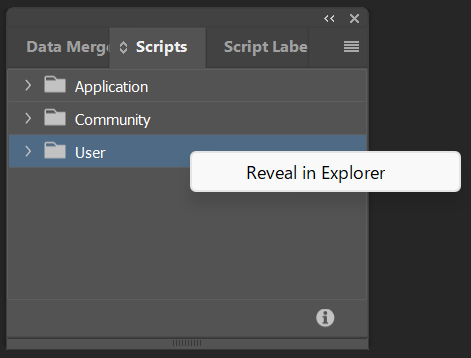
In the Scripts panel, three folders are usually shown:
-
Application
Community
-
User
-
Select User
-
From the panel menu, choose Reveal in Explorer / Finder
-
A folder named Scripts will open
-
Open the Scripts Panel folder inside it
-
Save your
.jsxfile into Scripts Panel
This is the folder where the .jsx file should be saved.
Once placed there, the script should appear in the Scripts panel.
5. Run the Script
Double-click the script in the Scripts panel.
If a dialog displaying “Hello, world” appears, the script has run successfully.
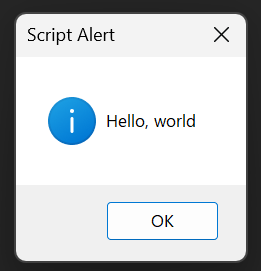
At this point, one important thing has been confirmed:
JavaScript is running inside InDesign.
This step exists only to verify that fact.
6. Change One Line to Control InDesign
6.1 Replace the Code
Open the same .jsx file again and replace its contents with the following line:
Save the file.
6.2 Run It Again
Run the script from the Scripts panel once more.
If a new InDesign document opens, the script worked.
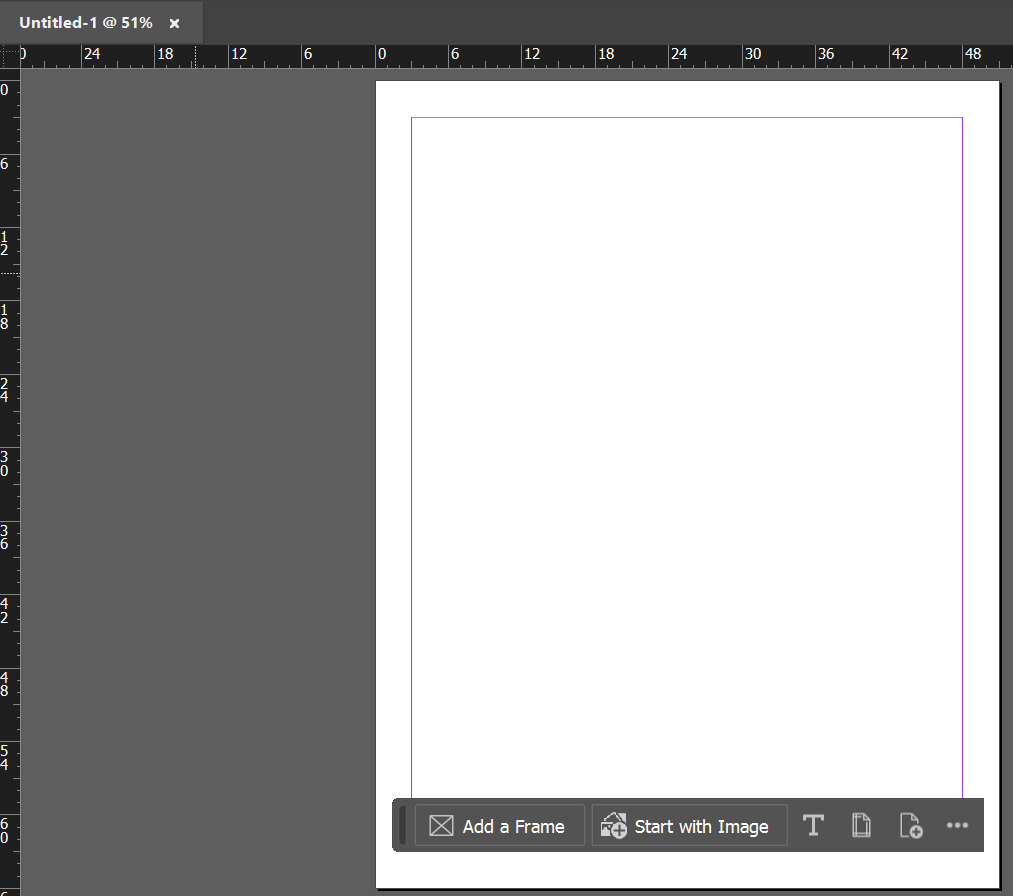
This confirms something more important than before:
JavaScript is not just running — it is controlling InDesign.
7. What Is Actually Necessary (And What Is Not)
At this stage, enough has already been covered to start using scripts in practice.
It is now clear:
-
Where scripts are stored
-
How they are executed
-
That scripts can control InDesign
A deep understanding of JavaScript is not required.
Programming theory is also unnecessary at this point.
For many real-world InDesign tasks, this level of knowledge is sufficient.
8. That’s It for Now
This article intentionally stops here.
The goal was not to teach JavaScript, but to remove the barrier between
“I’ve heard of scripts” and “I can actually run one”.
Most articles on this blog are written for people working with InDesign in production environments.
Occasionally, articles like this are added as entry points.
If a script can be executed successfully, the hardest part is already over.
If you want to try a real-world example, the following article includes a sample script.
The script can be run using exactly the same method shown in this article: