When InDesign Fails to Export: Start by Finding the Broken Page
Updated September 18, 2026
InDesign export failures can be difficult to diagnose. A document may open normally, but fail when you try to export it as a PDF. The file may hang partway through, crash the application, or produce an incomplete PDF with no clear error message.
When this happens, the first problem is often not fixing the file. The first problem is finding where the failure starts.
A note on scope. This article is about one specific situation: a PDF (or print) export that fails in a way you can reproduce with a specific page range. That scope matters, because the core technique below — testing page ranges — only works for outputs that accept a page range. IDML export and ordinary "Save As" failures do not; there is no "export only pages 1–150 to IDML." Those require a different isolation method based on duplicating the document and removing pages or content, which I touch on at the end but do not cover in depth here.
A damaged InDesign document can fail for many reasons: a corrupted object, a broken placed file, a font issue, a complex table, an anchored object, a parent-page item, threaded text, transparency settings, or internal document corruption. Trying to repair everything at once is rarely efficient. A better first step is to narrow the search area.
Why diagnosis should come before repair
When an export fails, it is tempting to start deleting objects, replacing links, changing fonts, or exporting to IDML immediately. Sometimes that works. But it also changes the document before you understand the problem, which can make troubleshooting harder. You may spend time on pages unrelated to the failure, or apply a repair that appears to work temporarily without addressing the cause.
Before repairing the file, it is usually better to answer two smaller questions in order:
- Is this actually a page-local content problem at all?
- If so, which page should I inspect first?
The first question is the one most people skip — so let's start there.
First, rule out the environment
Before you bisect a 300-page document, confirm that the failure is caused by the document's content and not by something around it. A PDF export can fail for reasons that have nothing to do with any page:
- the output folder's permissions, or a network / cloud-sync destination
- low disk space
- corrupt InDesign preferences
- a third-party plugin
- one specific PDF preset
- memory pressure on large jobs
- a problem with the InDesign install itself
If one of these is the real cause, page bisection may never converge — or worse, converge on a misleading suspect range. So run a short gate first:
- Reproduce on a copy. Duplicate the
.inddand confirm the failure still happens. Work on the copy from here on. - Export to a plain local folder. If it now succeeds, the problem was the destination, not the document.
- Test the preset in isolation. Create a new one-page document and export it with the same preset. If that fails too, suspect the preset or the environment, not your file.
- Try a known-good preset. If your file exports fine under a different preset, you've narrowed it to preset-specific handling (fonts, transparency, color conversion, compression).
- Classify the failure. Is it a clean error dialog, a hang, a crash, or a silently incomplete PDF? These are different problems, and you'll treat them differently below.
- Test the same range twice. If the same export sometimes passes and sometimes fails, the failure is non-deterministic — and, as you'll see, bisection cannot be trusted in that case.
Only once the failure survives this gate — reproducible, document-specific, deterministic — is page-range bisection the right tool.
Common causes, once it is the document
When the cause is inside the file, it is often hidden. The page can look normal, and the error message rarely names the responsible object. Candidates include:
- corrupted page items
- missing or damaged linked images
- damaged placed PDF, AI, or EPS files
- font problems
- complex tables
- anchored objects
- parent-page (formerly "master page") items
- threaded-text problems
- transparency or effect settings
- internal document history or file corruption
One item deserves a caveat: overset text is frequently blamed, but it usually causes missing output rather than a halted export. Keep "the export failed" and "the output is incomplete" as separate problems; they don't always have the same cause.
Why a script can't do this whole job unattended
If you write InDesign automation, your instinct here is probably to script it: loop through the pages, export each one, catch the error on the bad page, write a report. It's worth being precise about what a script can and cannot do, because the honest answer is both, depending on how the export fails.
InDesign export failures don't share one failure mode:
- A catchable scripting exception.
exportFile()throws, control returns to your script,try/catchworks, and you can log the result. A script handles this case fine. - An asynchronous failure.
asynchronousExportFile()returns a background task and reports problems later, decoupled from the callingtry/catch. The error may surface well after the line that started it. - A hang. The InDesign process is still alive but unresponsive. Your script is stuck inside the same process and never returns.
- A hard crash. The native InDesign process terminates rather than raising a catchable exception, taking your script down with it before it can log anything.
For diagnosis, it helps to take the asynchronous path off the table — and how you do that differs for manual tests versus scripts. For manual File > Export tests, you can disable desktop background PDF export: quit InDesign, place an empty file named DisableAsyncExports.txt in the application folder (on macOS, inside the app's Contents/MacOS/; on Windows, the InDesign program folder, which usually needs administrator rights), then relaunch. PDF export will then run in the foreground and block the InDesign UI until it finishes. In a script, there's no file to place — the choice is explicit: exportFile() for a synchronous call, asynchronousExportFile() for a background task.
Either way, a foreground/synchronous export ties any catchable error directly to the export attempt, instead of it being reported later by a background-task alert — easier to observe, time, and trap. (A hang or hard crash can still prevent control from returning; running in the foreground only helps with the errors that are catchable in the first place.)
The hang and the hard crash are the two that break the "just script it" plan. When the host process hangs or dies, an in-process script cannot record a post-export result or continue to the next page. In a hang, the script never regains control; in a crash, the process and the script terminate outright. Either way, nothing gets logged after the fact.
But notice the limit precisely, because it is narrower than "scripting is useless here." A script can still write the range it is about to test and persist that line to disk before starting the export. What it cannot do is complete an unattended full sweep in a single process: after a crash it needs to be relaunched and resumed. So the honest framing is not "manual instead of script." It's: an in-process script can preserve state, but it cannot recover and continue on its own. The dependable, low-effort method for that recovery loop is your own hands.
The manual method: page-range bisection
The most dependable approach is to divide the document into smaller page ranges and test them by hand. Because you are the one clicking Export, a crash costs you a relaunch — not your entire record.
A precondition first. Bisection is reliable only when two things hold: the failure is reproducible, and there is at least one local, independent trigger — a page or contiguous range that still fails when it is tested inside one of the two halves on its own. ("Local" here means it can be reproduced within a sub-range by itself, not merely that it's "visible on the same page.") There can be more than one such trigger, which is why removing one may not make every other range pass. As long as at least one local trigger holds, the search is efficient:
- Export the whole document (you did this in the gate above).
- If it fails, export only the first half.
- If the first half succeeds, a trigger is in the second half — split that.
- If the first half fails, split it.
- Repeat until the failing range is a single page or spread.
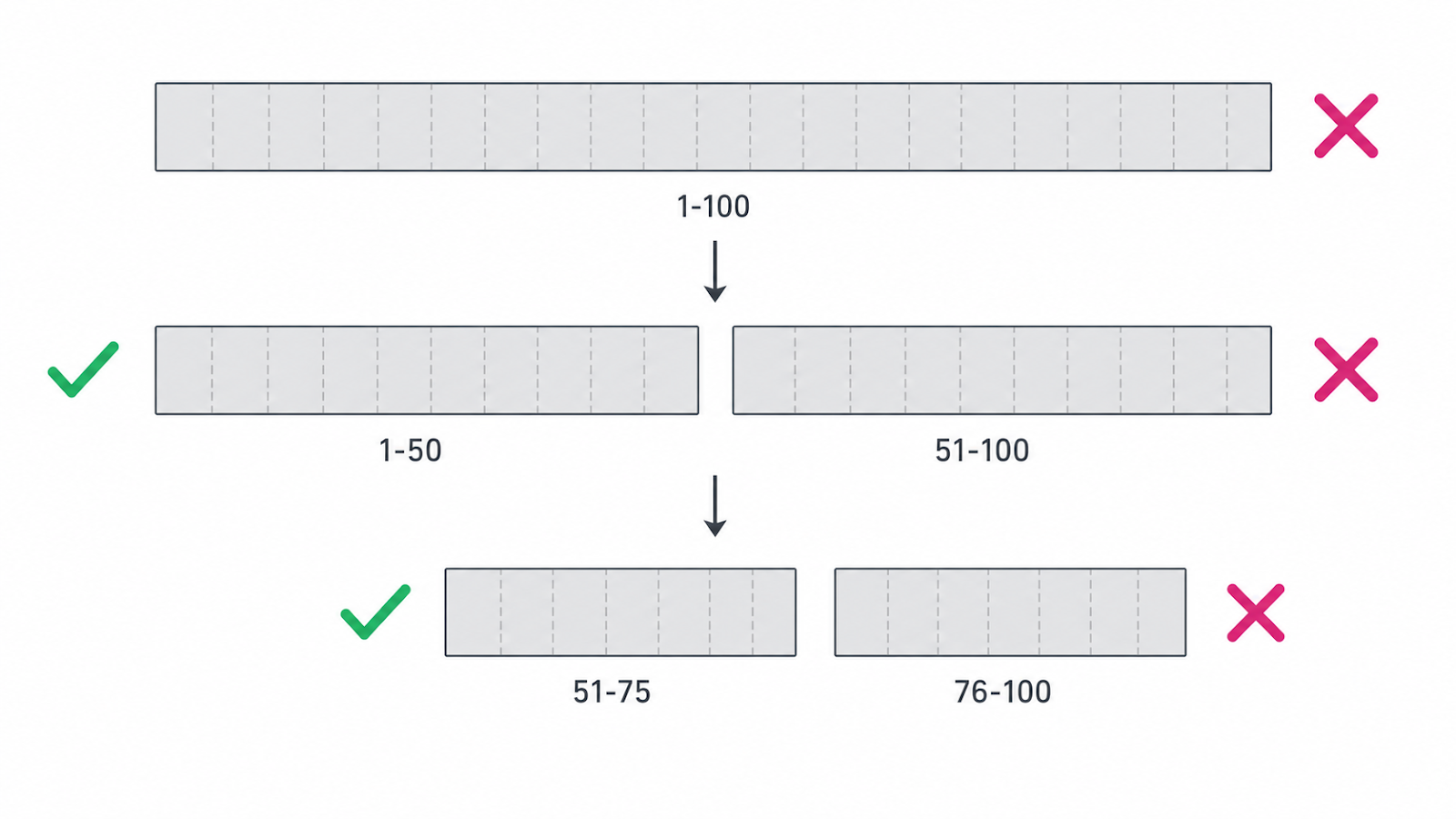
Each test roughly halves the search area, so a 300-page document usually collapses to one suspect page in about nine splits (plus the initial full-document test).
That locality assumption is exactly what breaks in the hard cases, so watch for these — where bisection can point at the wrong range, or at no range at all:
- the export fails only when two specific pages are both present (an interaction — a cross-reference or shared resource — so neither half fails on its own)
- the failure depends on total load: memory exhaustion that only appears on large ranges, or accumulates across many sequential exports
- results vary between runs (a non-deterministic failure)
- the tested pages depend on adjacent-page or document-wide state — parent-page items, threaded stories, shared swatches, cross-references
- the whole document fails but neither half does — the trigger is not independently page-local; it may be document-level state, a cross-range interaction, or total workload
One case looks like a breakage but isn't: multiple independent bad pages. Bisection still finds one of them just fine — the catch is that fixing that page won't fix the document, because another remains. That's exactly why the last habit below matters.
A few habits keep the manual search reliable:
- Record every range and its result in a two-column note. After a crash forces a relaunch, this note is the only thing stopping you from repeating tests.
- Fix one preset for the whole session — the one you actually need — and note which it was.
- Test spreads, not single pages, for spread-based layouts.
- Relaunch cleanly after a crash and reopen the copy fresh before the next test.
- After isolating one page, re-test the whole document with that page removed to check for a second bad page.
Record your intent before each risky export
There is one place where a little automation helps, and it does not contradict anything above — because it does its work before the export, not after.
Keep a log, and write the next line and save it to disk immediately before each export attempt. The key word is save: an unsaved editor buffer is not durable against an editor crash, a system crash, or power loss (an InDesign-only crash usually spares an external editor, but don't count on it). Use a log format that distinguishes states rather than just "OK/Failed":
STARTED    range=151-300
COMPLETED  range=151-300  output=exists, pages=150, opens=yes
FAILED     range=151-300  error=<message>
TIMEOUT    range=151-300
If InDesign crashes, the log's last line will be a STARTED with no matching COMPLETED. That tells you which range was being attempted when it stopped — a strong suspect, not a proven cause. Two refinements matter:
- A
STARTED-only entry means only that no completion was recorded for that attempt. The cause could be a crash, a hang followed by a forced quit, a system interruption, or even a logging failure — so treat it as a candidate, not a verdict. - Beware the success-then-crash case: if the PDF finished but InDesign crashed before writing
COMPLETED, the range looks failed but isn't. Check whether the PDF exists, has a plausible size, opens, and has the expected page count — that distinguishes a finished export from an interrupted one, though it still doesn't prove every page rendered correctly.
You can maintain this log by hand or with a tiny helper that only appends-and-flushes a line (that part never touches the failing export, so it's safe either way).
If you want to push it further: an external driver
To actually recover and continue across crashes without you at the keyboard, the automation has to live outside InDesign, so it survives the crash. This is a real option, but it is considerably more work than the manual loop, and worth doing only if you hit these failures often.
On Windows, InDesign exposes a COM automation interface onto substantially the same scripting object model the JavaScript engine uses, with language-specific mappings — so an external Python process (via win32com, Dispatch("InDesign.Application")) can drive it directly. On macOS, the equivalent path is AppleScript / Apple Events. (Note that you can't simply drop a .py file in the Scripts panel; Python isn't a natively supported in-panel language, so it drives InDesign through that external COM/AppleScript layer.)
A production-grade driver needs more than a liveness check, because a hang is not a crash: the process stays alive but never returns, so "is InDesign still running?" won't detect it. At minimum it needs to handle launch-completion detection, modal/recovery dialogs, a per-range timeout, output-file validation (exists, size, page count, opens as a valid PDF), forced termination, relaunch, and a persisted state file so it can resume the sweep.
For genuinely unattended, high-volume automation, the intended tool is InDesign Server, the headless, UI-less product (commonly driven over SOAP). But it is a separate product and license, and it does not guarantee it will reproduce a desktop InDesign failure identically — so it's a scaling path, not a drop-in diagnostic for a single broken desktop file. (Note too that asynchronous export is a desktop-only feature; InDesign Server exports synchronously.)
After isolating the page: go object by object
Once you have a suspect page, keep bisecting — this time at the object level, and always on a duplicate of the original. (Copying suspect objects into a new document can silently regenerate their structure and "heal" the corruption, giving a false pass; deleting or hiding within a duplicate of the original preserves the problem.)
- Check the Links panel on that page for missing or modified links.
- Hide or delete half the objects on the page, re-test, and narrow down — the same bisection idea, one level lower.
- Temporarily swap placed PDF / AI / EPS files for a low-res proxy or a known-good file.
- Remove parent-page items from the page and test.
- Check bleed, slug, and pasteboard items that print but are easy to overlook.
- Inspect tables, anchored objects, and grouped objects.
- Re-test with the same preset after each change.
This is still investigative — but now the search area is one page, then a handful of objects, not a whole book.
What the result does and doesn't tell you
Isolating a page is useful, but interpret it carefully.
A failing range is a strong candidate for inspection. A range that passed is not proof the document is healthy. And even a single isolated page is a failure-triggering page, not necessarily the root cause — the actual cause may be a parent page, a shared swatch, document structure, total export load, or an interaction with another page. Call it a suspect page or trigger range, and don't attribute the root cause to the page itself until you've confirmed it at the object level.
There's also a practical cost: for very large documents, many manual exports take time, and each crash means a relaunch. Bisection keeps the number of tests low, but budget for the relaunches.
Why this matters for scalable DTP workflows
In multilingual DTP and production work, file failures are usually handled as one-off emergencies. Someone investigates, tries a few repairs, finds a workaround — and the knowledge disappears when the job ships.
A written diagnostic record changes that, even when the whole process was manual. But to be reusable, the record needs more than "page 3 failed." Capture:
- InDesign version and build, and the OS
- output format and the exact preset name/settings
- output destination (local vs network/sync)
- failure classification: error, hang, crash, or incomplete PDF
- reproducibility rate (always, or intermittently?)
- the suspect range/page and, if found, the object
- relevant link and font versions
Do this a few times and patterns emerge — the same placed-file type, the same font, the same parent page. That's the beginning of a repeatable document-health practice, and it doesn't require a single line of working script.
Conclusion
When InDesign fails to export a PDF, the most important first step is not always to fix the file. It's to rule out the environment, then narrow the document until only a suspect page — and then a suspect object — is left.
The instinct to automate that is understandable, and partly right: a script can preserve state before each risky export. What it can't do is recover and continue on its own after the process hangs or dies, which is exactly what the hard failures do. So the dependable core is a manual bisection, backed by a log that records your intent before each export and distinguishes a crash from a genuine failure.
Good troubleshooting doesn't always fix the problem directly. Often the most valuable thing it does is shrink the search until there's only one page left to suspect — and make sure a crash can never erase the fact that you got that far.