InDesign Auto Style with Word: Testing a Messy File and a Custom Template
This article is also available as a short video on YouTube: InDesign Auto Style with Word: Two Files Tested
InDesign has a feature called Auto Style. You select a text frame, pick a Style Pack in the Style Packs panel (Window > Styles > Style Packs), and InDesign assigns paragraph styles from that pack. Adobe's help page says it uses artificial intelligence to identify headings, subheadings, paragraphs and bullets, and that a placed Word file needs at least 1,000 characters.
I prepare Word manuscripts for InDesign, and assigning styles by hand is the slow part when the Word file is messy. So I ran Auto Style on two test files. The first mixes Word styles with direct formatting. The second is cleanly styled in Word and goes into a template of my own.
How I tested
I used InDesign 2026 (21.6) on Windows, with English text. Both Word files are synthetic: I wrote them for this test, with an answer key that gives the intended role of every paragraph. I placed each file with Preserve Styles and Formatting enabled and the InDesign style definition taking precedence on name clashes. Show Import Options was off. I confirmed the imported styles before running Auto Style on the text frame, then read the resulting paragraph styles with a script.
My first runs used Remove Styles and Formatting by mistake. I reran both tests with Preserve Styles and Formatting in InDesign 21.6. The numbers below come from those reruns. Every paragraph received the same role as in the earlier runs.
Two small files are not a benchmark. The numbers describe what happened on these files. You can download the Word files, template, answer keys and results and run it yourself.
Test 1: a messy Word file and a preset Style Pack
InDesign offers a list of preset Style Packs. I used one called August. The first file is a 25-paragraph user guide for a desk lamp. Some headings are Normal paragraphs made bold and larger, and one is 16 pt without bold. Three use a style named Heading1, and others use H2 and Title 1, and the body style is called Body Copy. Lists are typed by hand with a bullet and a tab, a hyphen and a tab, or 1. and a tab. There is one real Word list, a local Arial override, and a short warning set in bold, which looks like a heading but is body text.
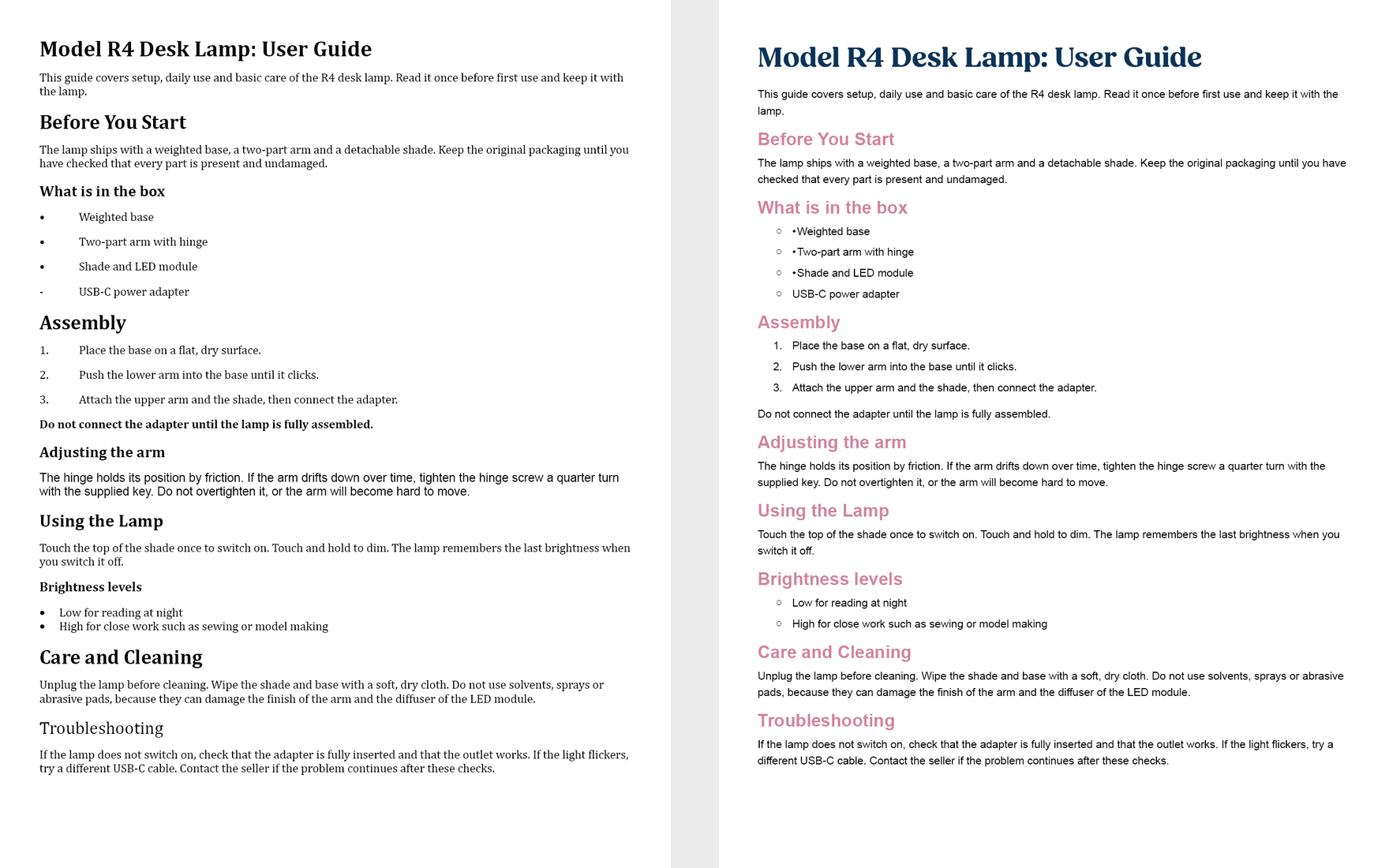
The answer key has two heading roles: Heading for the title and the chapter headings, and Subheading for the section headings. I counted two ways. By group (any heading role, body, or list), every paragraph matched: 25 of 25. By role, Heading and Subheading must also match: 20 of 25.
| Expected role | Paragraphs | Matched by group | Matched by role | Notes |
|---|---|---|---|---|
| Heading | 6 | 6 | 1 | the title got Heading; 5 chapter headings got Subheading |
| Subheading | 3 | 3 | 3 | |
| Body | 7 | 7 | 7 | bold removed from the warning |
| Bulleted list | 6 | 6 | 6 | 3 kept the typed bullet |
| Numbered list | 3 | 3 | 3 | typed numbers removed |
| Total | 25 | 25 | 20 |
The parts I expected to fail came out right. The 16 pt heading without bold became a heading, and the bold warning stayed body text. The typed numbers and hyphens were removed and those paragraphs became list paragraphs. The Arial override was cleared.
What still needed work:
- Heading roles. Only the title got Heading. The five chapter headings got the same Subheading as the section headings below them.
- Typed bullets. The three paragraphs that started with a bullet and a tab got the bulleted list style, but the typed bullet stayed in the text, so those lines show two bullets. The hyphen lines in the same list were cleaned up.
- Lost emphasis. The warning lost its bold.
- Checking the result. After the run I saw no notice, no list of restyled paragraphs, and nothing new in the Properties or Style Packs panel. The missing-font highlighting made it hard to rule out a marker on the text itself. The Edit menu showed "Undo Apply Auto Style". I checked the assigned styles with a script.
Test 2: a clean Word file and my own template
My production files use templates with their own paragraph styles. I wanted to see how much work Auto Style would leave before the text used those styles. Adobe's help page does not promise that mapping. This test checks my use of the feature.
The template has eight paragraph styles (Chapter Head, Section Head, Subsection Head, Body, Note, Caption, Step, Bullet) and two character styles (Term, Product Name). The Word file has 22 paragraphs and is styled in Word: Heading 1 to 3, a Note style, a Caption Text style, List Number, List Bullet, and character styles Term and Product.
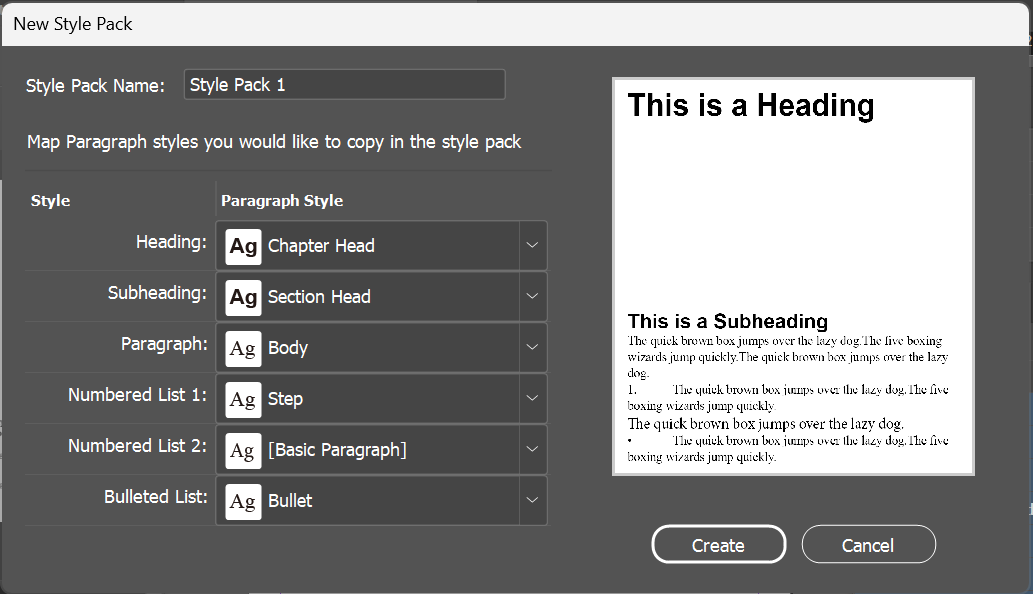
I made a Style Pack from the template with Copy to New Style Pack. The dialog shows six roles: Heading, Subheading, Paragraph, Numbered List 1, Numbered List 2, Bulleted List. None of them is a separate role for a note, a caption or a third heading level.
On my first try I kept the mapping the dialog proposed, which put Subsection Head on the Paragraph role. So I made a second pack and mapped it myself: Chapter Head to Heading, Section Head to Subheading, Body to Paragraph, Step to Numbered List 1, Bullet to Bulleted List. I left Numbered List 2 at [Basic Paragraph].
For the rerun I placed the Word file in a fresh copy of the template and ran Auto Style once with each pack. On import, Word's Note style had already landed on the template's Note, because the names match.
After Auto Style, no paragraph used an original template style. The dialog describes copying styles: "Map Paragraph styles you would like to copy in the style pack." Auto Style applied new paragraph styles in a group named after the pack (Style: Style Pack 1, then Style: Style Pack 2) with the look of the template styles. This happened with my own mapping too. No paragraph used Chapter Head, Body, Note or the other original styles. Before handing over a document that needs those styles, I would have to remap the text.
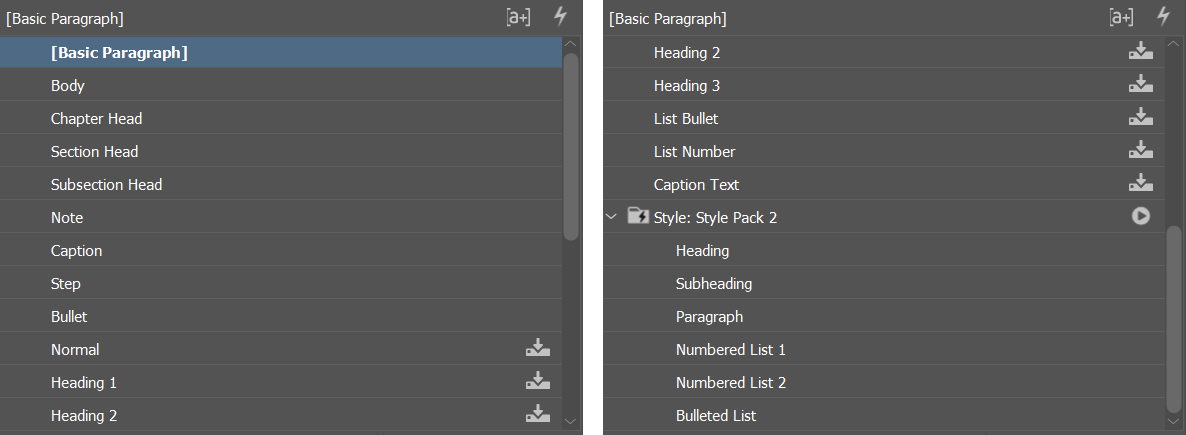
After Auto Style, 0 of the 22 paragraphs used an original template style. For the table below I counted something easier: whether the assigned role fits the paragraph's intended function. Heading counts for Chapter Head, Subheading for Section Head, Paragraph for Body, a numbered list role for Step, and Bulleted List for Bullet. Note, Caption and Subsection Head need a distinction these six roles do not have, so those six paragraphs cannot match.
| Word style | Paragraphs | Template style | Auto Style gave | Function matches |
|---|---|---|---|---|
| Heading 1 | 1 | Chapter Head | Heading | 1 |
| Heading 2 | 3 | Section Head | Subheading | 3 |
| Heading 3 | 2 | Subsection Head | Subheading | 0 |
| Normal | 5 | Body | Paragraph (4), Bulleted List (1) | 4 |
| Note | 2 | Note | Paragraph | 0 |
| Caption Text | 2 | Caption | Paragraph | 0 |
| List Number | 4 | Step | Bulleted List | 0 |
| List Bullet | 3 | Bullet | Bulleted List | 3 |
| Total | 22 | 11 |
The four numbered steps became a bulleted list, so the step numbers are gone. That happened even with Step mapped to Numbered List 1. Paragraph 21, a body paragraph that comes after the bullet list and a Note, also got Bulleted List. Word's Note, Caption Text, Heading 3 and List Number styles were all in the document when Auto Style ran, and the assigned roles did not keep those distinctions. The two Note paragraphs left the template's Note and became Paragraph.
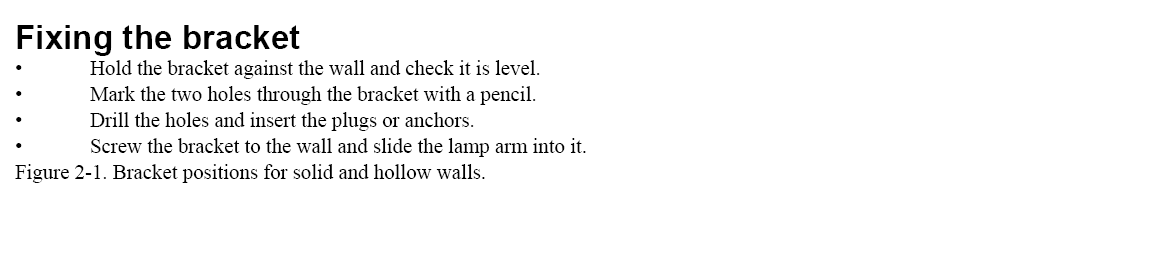
Term and Product both stayed as character styles, and the product names kept their italics. With the proposed mapping, the body text around them took bold italics from Subsection Head. In the earlier runs with Remove Styles and Formatting enabled, Product was not retained. It remained in both Preserve Styles reruns.
Both packs gave the same role to every one of the 22 paragraphs. So did the three earlier runs with Word styles removed. My mapping changed how the text looked (the body text took Body's font instead of Subsection Head's) but not which role any paragraph got.
Calling it from a script
I found no Auto Style method or property on the application, document, story or text frame objects in InDesign 21.6. I could not call it directly through the scripting objects I checked, so I used the user interface.
What I take from this
On the first file, the August preset put every paragraph in the expected group. Heading roles, the leftover typed bullets and the lost bold still needed correction.
On the second file, the text still needed the template's original styles. Notes, captions, numbered steps and the third heading level also needed correction.
If your Word file is already styled and you need your template's styles, choose File > Place and turn on Show Import Options. Use Customize Style Import > Style Mapping to map the Word styles to your template's styles.
Limits of this test
- Two synthetic Word files, 25 and 22 paragraphs, English only, InDesign 21.6 on Windows. The November 2 runs used 21.5. The version used for the November 4 run was not recorded, so the import settings were not compared under the same recorded version.
- One template, with two Style Packs: the mapping the dialog proposed and my own.
- One preset, August, in Test 1. I did not score the other presets.
- I could not activate all of August's fonts, so InDesign reported missing fonts. In the screenshots I replaced them with Arial after Auto Style had run.