What to Check in InDesign After Translating IDML with DeepL, Smartcat and Redokun
This article is also available as a short video on YouTube: What to Check After Translating an InDesign Document
In November 2026, I sent one four-page IDML file through DeepL, Smartcat and Redokun using the settings below. Each service returned a German, a Japanese and an Arabic file, and I opened all nine in InDesign without editing the translations.
The test
The file is a made-up quick guide for a label printer, set in Arial with one Courier New character style. It has:
- a footnote, a table with a merged cell, an index marker and a cross-reference to a heading on page 3
- character styles inside sentences, plus local underline and tracking overrides
- a footer with an automatic page number on the parent page
- a text frame on a hidden layer and a text frame on the pasteboard
- an anchored frame and a group
- one frame on page 3 with very little spare room
I exported the IDML from InDesign 21.6 on Windows. The tools were run like this:
- DeepL: API Free, document translation, default settings, no glossary. November 12.
- Redokun: 14-day trial. Pre-Translate in the editor with the default engine, OpenAI (ChatGPT), and the Neutral tone. No glossary or translation memory. I confirmed the drafts unchanged and downloaded the IDML. November 14.
- Smartcat: trial plan. A new project with the default workflow, a single AI translation stage. I downloaded the IDML without editing. November 14.
I opened the nine files and exported PDFs in InDesign 21.6. I also checked the Redokun files in InDesign 22.0 and got the same results.
This is one small synthetic file, one run per tool and language, with default settings. I checked selected Japanese terms against the source. For German and Arabic, I checked the file and the layout.
German text was cut off in the PDF
All three German IDML files contained the full passage for page 3, and InDesign reported one overset frame on that page in each. In the PDFs, the passage simply ends: DeepL's lost its last sentence, Redokun's stopped partway through the third of four sentences, and Smartcat's stopped partway through the fourth.
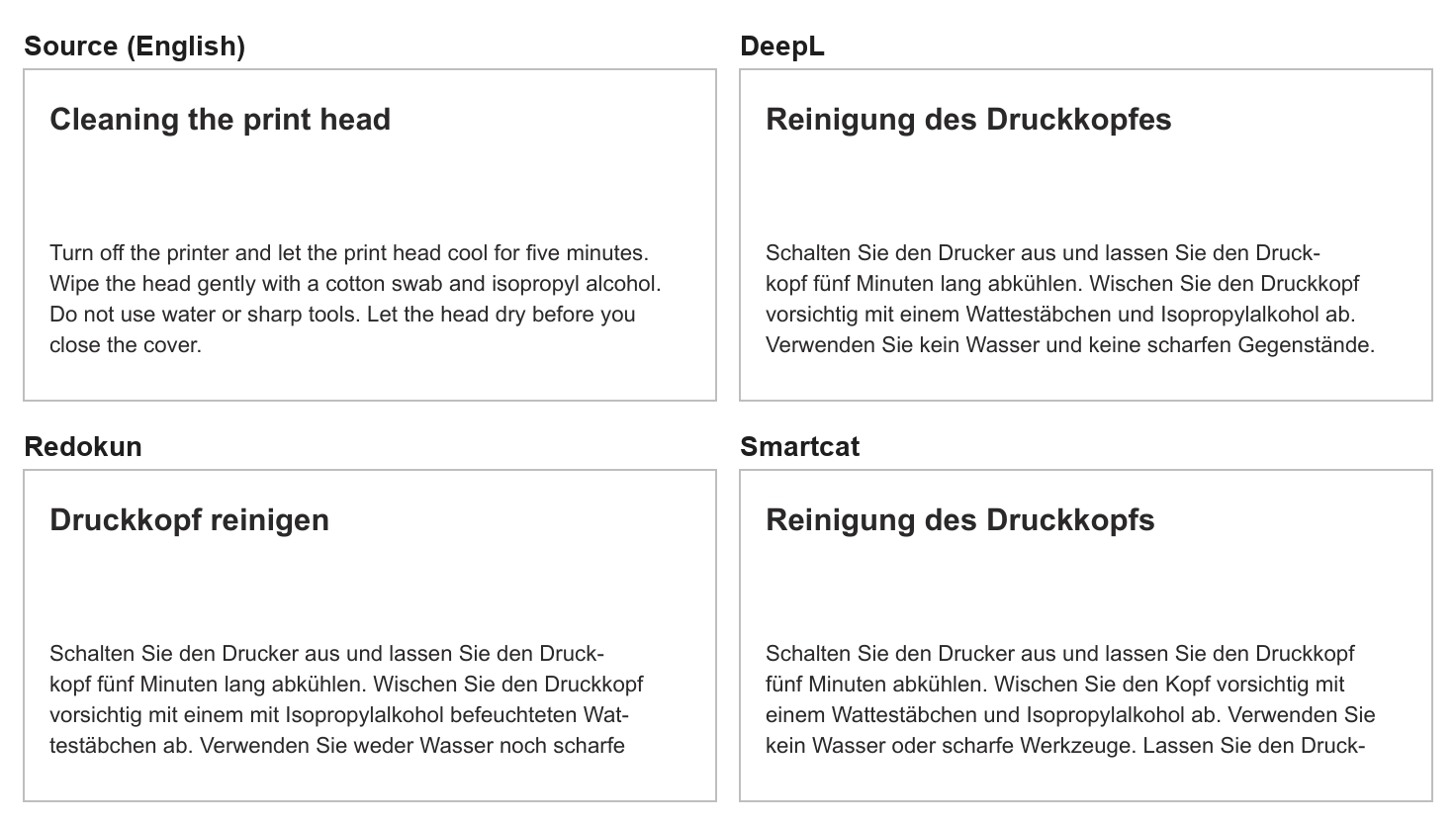
Nothing on the page marks the missing text. A reviewer reading the PDF without the source would have to notice that the paragraph ends early. Check overset in InDesign. I wrote about a script that lists pages with overset text earlier.
Missing glyphs in Japanese IDML
Japanese characters appeared as boxes throughout all three PDFs. The files still used Arial, and the text language was still English: USA.
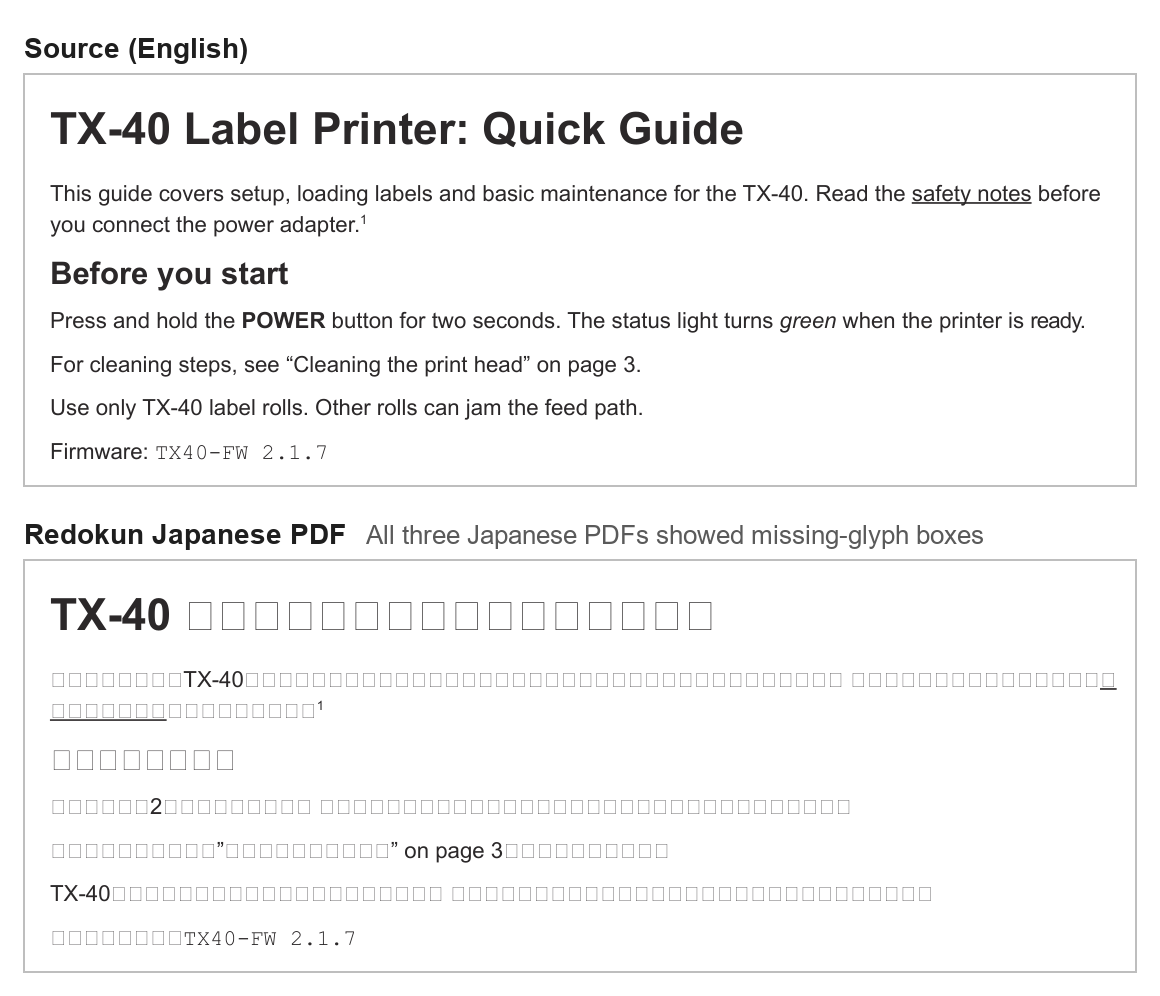
Use a font that covers Japanese in the affected paragraph and character styles. Set the text language to Japanese as well. I covered what to check in What to Check When Replacing Fonts in a Translated InDesign File.
Arabic text running left to right
The Redokun Arabic file used right-to-left paragraphs and the Adobe World-Ready Paragraph Composer. The DeepL and Smartcat Arabic files kept left-to-right paragraphs and the Adobe Paragraph Composer, and the Arabic in their PDFs was not joined correctly.
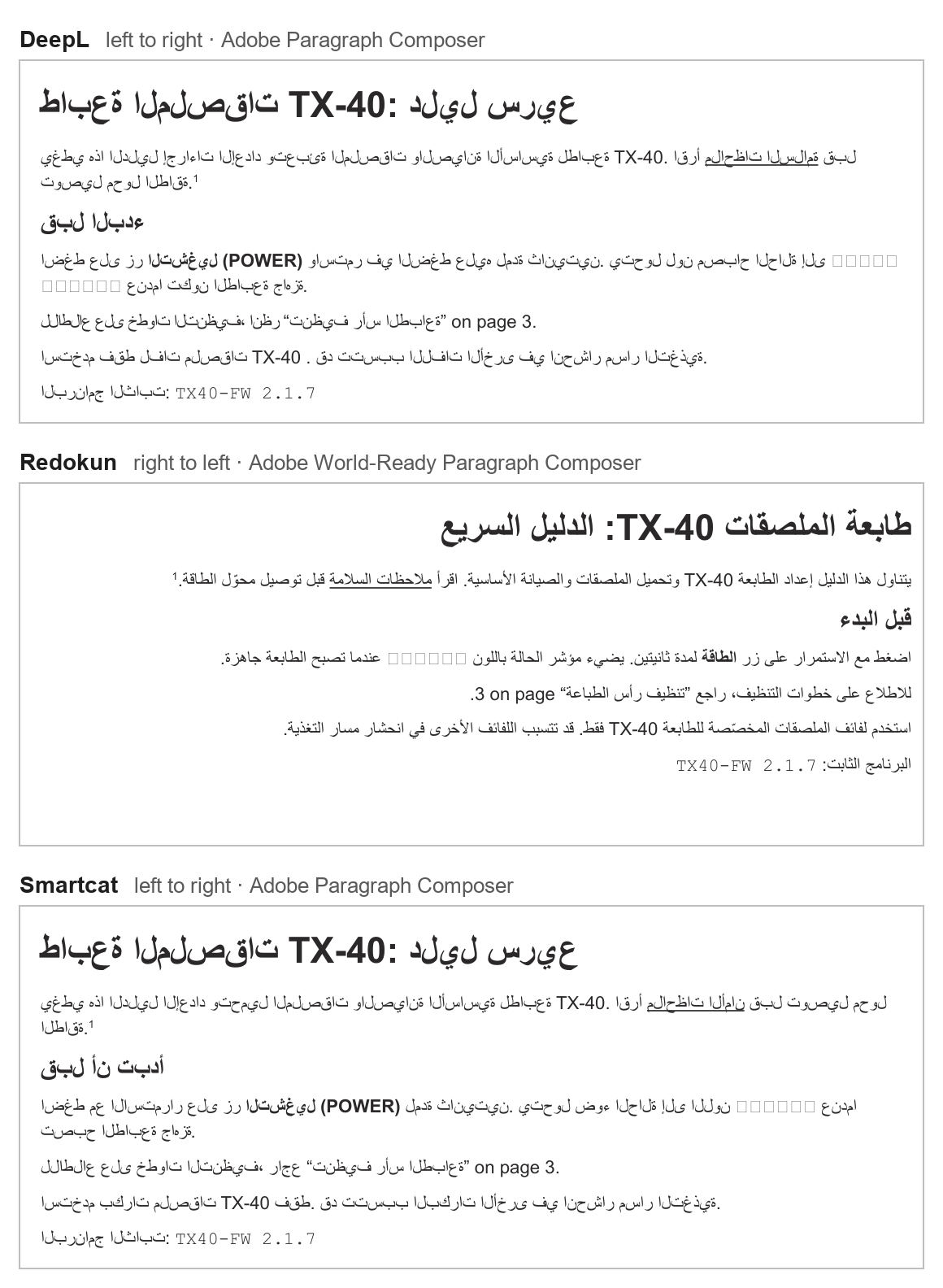
In all three, the language stayed English: USA, and text set in Arial Italic (captions, callouts, the footnote and one italic word) showed boxes.
Cross-references showed "on page"
The source cross-reference read "'Cleaning the print head' on page 3", built from the format Paragraph Text & Page Number. Every tool translated the heading on page 3. Inside the cross-reference itself, the results differed. DeepL's files still had the English text. The Redokun and Smartcat German files had "auf Seite".
After I updated cross-references in InDesign, all nine files showed the translated heading followed by "on page 3", because the format still contained the English words "on page".
Edit the words in the format (Define Cross-Reference Formats in the Cross-References panel menu), keep the heading and page number building blocks, update, and read the whole sentence again.
The index topic stayed in English
All nine files kept the page reference. The index topic still read "label rolls". Check topic names before generating an index.
Hidden layers and the pasteboard

| Text on a hidden layer | Text on the pasteboard | |
|---|---|---|
| DeepL | Left in English | Translated |
| Redokun | Translated | Left in English |
| Smartcat | Translated | Translated |
The hidden layer held an internal note, and the pasteboard held an old caption. Both stayed out of these PDFs, so check both in the IDML. A hidden layer can be turned on later, and English text there is easy to miss.
A character style on a different word
In the source sentence "The status light turns green when the printer is ready", "green" has the UI Label character style. In Smartcat's Japanese file, UI Label was on the Japanese words for "is ready" and not on the word for "green". In the DeepL and Redokun files it was on "green".
To step through styled text in InDesign, open Find/Change, leave Find what empty, choose the character style under Find Format, set the search scope and use Find Next.
Labels and terms
The printer has a button labeled POWER.
| Japanese | Arabic | German | |
|---|---|---|---|
| DeepL | Kept POWER | Translation plus "(POWER)" | Kept POWER |
| Redokun | Translated (電源) | Translated | Kept POWER |
| Smartcat | Translated (電源) | Translation plus "(POWER)" | Kept POWER |
Match the manual's button label to the hardware.
Two Japanese terms a reviewer would check:
- "Feed slot", a callout: DeepL 給餌口 (a feeding slot, as for animals), Redokun ラベル排出口 (label outlet), Smartcat 給紙スロット (paper feed slot). The file has no diagram that settles which way the labels travel.
- "Shipping", a table row for a label type: DeepL 送料 (shipping fee), Redokun 配送用 (for shipping), Smartcat 配送 (shipping).
A list of strings that must not be translated and a short glossary are inputs to send with the file. I did not test whether they change these results.
What my comparison script caught
My comparison script flagged the English note on the hidden layer in all three DeepL files. It found the English pasteboard caption in the Redokun files and suppressed the warning because the caption does not print. It flagged changes in character-style order in the DeepL and Redokun Japanese files. All three Japanese files drew a warning when "five" became "5". The quantity stayed the same. It missed that Smartcat's UI Label style had moved from "green" to "is ready". I found that by reading the styled text in the IDML.
A checklist in working order
- Before sending: agree which hidden-layer and pasteboard text should be translated. List the labels that must match the product.
- On return: check the fonts and language in the paragraph and character styles, including the faces used in footnotes and styled text. For Arabic, check paragraph direction and composer. Run Preflight with a profile that checks for overset text and missing glyphs. In InDesign 21.6, the [Basic] profile checks overset text but not missing glyphs. Fix the fonts and text direction, then resolve any overset.
- Compare with the source: turn on hidden layers and look at the pasteboard against what was agreed. Compare footnotes, table cells, parent-page text and anchored items. Check styled words, local overrides and product labels.
- Update cross-references and read them in the surrounding sentence. If there is an index, check the topic names before generating it.
- At the end: run the same Preflight checks before exporting. Check the repaired pages in the PDF.