Translate an InDesign IDML File with AI and Review It Against a Brief
This article is also available as a short video on YouTube: Translate an InDesign Document with AI and Review It Against a Brief
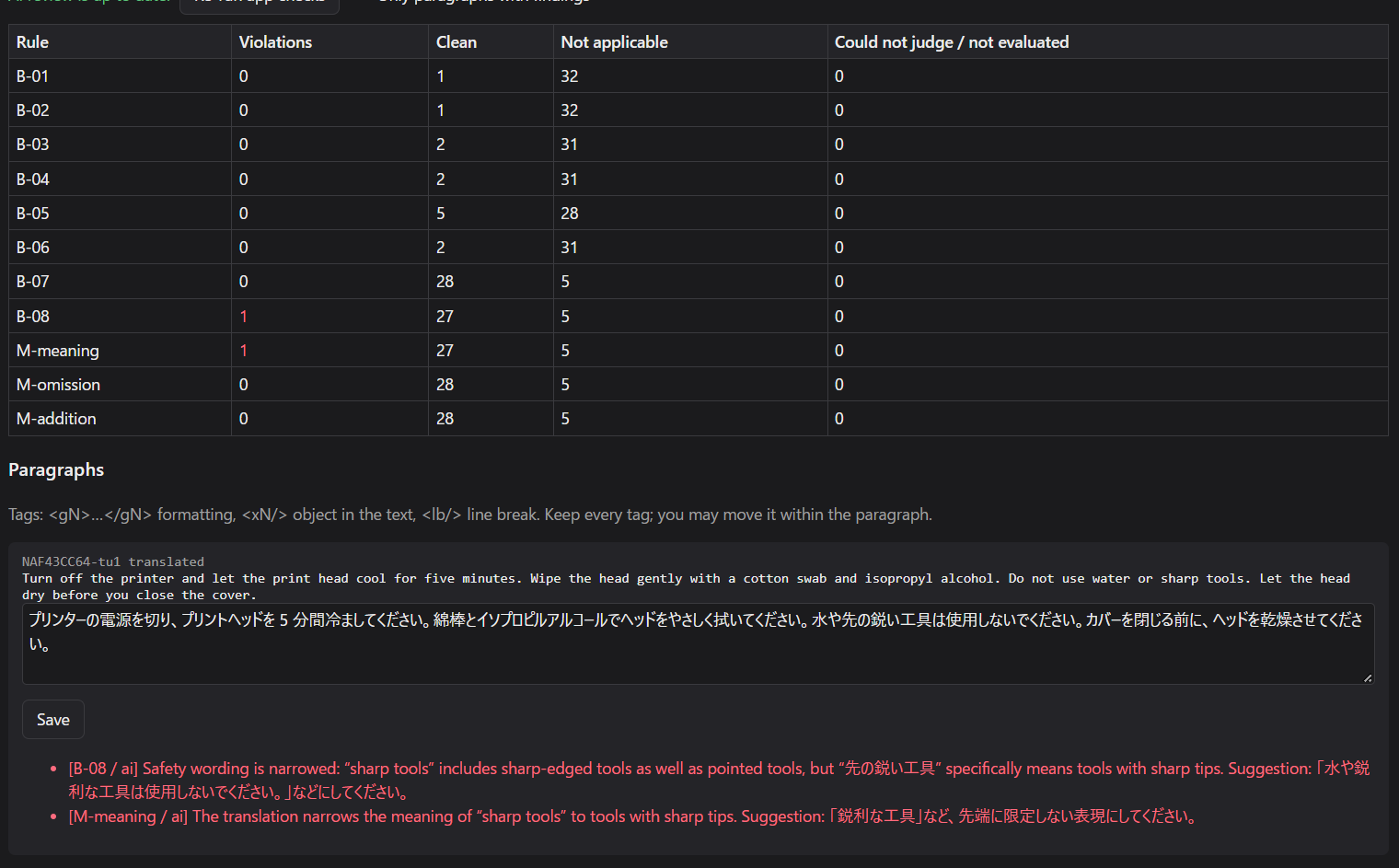
I built a small Windows app, IDML Brief Translate, that translates an IDML file from English to Japanese using a saved translation brief. For the test brief below, the app checks B-01 through B-06 automatically, including the specified placement of the UI Label style. An OpenAI model reviews the free-text rules, such as the instructions on polite form and safety wording. It also checks for changes in meaning, omissions and additions. You review the findings, edit the translation, run the checks again and export an IDML to inspect in InDesign.
I built it to show this workflow on one four-page test document. The exported file still needs a language review and a layout check in InDesign. The app is free and the source is on GitHub. API usage is paid separately, with your own Anthropic and OpenAI keys.
Related features already exist in Phrase and Crowdin. I wanted to build this workflow around an IDML file and make each finding point to a rule.
The brief
In this app, a brief is a saved list of translation rules. Each rule has an ID, so a finding can point back to the instruction it is about. The same brief is used for every run. This is the brief I used for the test file:
| ID | Rule | Checked by |
|---|---|---|
| B-01 | POWER stays in English | App check |
| B-02 | The UI Label style goes on the Japanese word for "green" |
App check |
| B-03 | label roll → ラベルロール | App check |
| B-04 | print head → プリントヘッド | App check |
| B-05 | TX-40 stays as is | App check |
| B-06 | Write numbers as digits (two seconds → 2 秒), recommended | App check |
| B-07 | Polite form in instructions | AI review |
| B-08 | Safety wording must not be softened or shortened | AI review |
The app checks the supported rule types automatically. Instructions written as free text go to the AI reviewer. The AI review also uses three built-in checks: M-meaning for a change in meaning, M-omission for missing content and M-addition for added content. These can overlap with rules in the brief.
The test file
I adapted the four-page test guide for a fictional label printer that I used in an earlier IDML translation test. I changed the fonts used by the styles to a font that supports Japanese so I could inspect the text without missing-glyph boxes. I also replaced italic formatting with regular text and made the UI Label style blue.
The file has a footnote, a table, an index marker, a cross-reference and character styles inside sentences. It also has local tracking and underline overrides, a hidden layer and a text frame on the pasteboard.
The app reads 33 paragraphs in 10 stories from it. Five of them have no words to translate (four hold only a number, one holds only a tag) and stay as they are.
Keeping formatting markers in their paragraph
The app extracts the text with Okapi Tikal. Character styles, footnote references, cross-references and index markers become markers in the text sent to the model. I call them tags here.
The model may move a tag inside its paragraph, because Japanese word order is different. It may not drop a tag, repeat it, invent one or move it to another paragraph. The app checks this for each paragraph before anything goes back into the IDML. If a paragraph fails the tag check, the app asks for a new translation once. If that also fails, the source paragraph is kept and listed in the report.
In my run, Claude (claude-opus-5-5) translated 28 paragraphs in two requests in about 15 seconds. The tag checks found no errors, and no paragraph was retried. For this one translation run, the estimated API cost was about $0.04, using the rates I recorded on November 17, 2026.
This sentence shows why tags may move:
The status light turns green when the printer is ready.
In this Japanese translation, the phrase for "is ready" comes before the word for "green." The UI Label style was on 緑色 (green). The Strong character style stayed on POWER, and the tracking override was on 準備が完了 (is ready). I checked these placements in InDesign.

Review against the rules
The app's automatic checks run first. Then an OpenAI model (gpt-5.5-2026-04-23) reads the source and translated paragraphs with the free-text rules and the three built-in checks. It returns findings with a rule ID, the reason and a suggested fix. The app accepts findings only for those rules and checks. A finding with any other rule ID is discarded. A paragraph with no review response stays marked "not evaluated".
I tested the automatic checks and the AI review together with two sets of errors planted in a manually prepared Japanese translation of the same file. Each altered paragraph had one planted error, such as POWER translated or "wider" changed to "narrower". I used the first set while writing the review prompt. I ran the second set once with the review prompt unchanged.
| First set | Second set | |
|---|---|---|
| Planted errors | 6 | 7 |
| Found by the app's checks | 2 of 2 | 1 of 1 |
| Found by the AI review | 4 of 4 | 6 of 6 |
| Findings on paragraphs with no planted error | 1 | 1 |
Both runs flagged the same note, which used the plain form. I counted that finding as a B-07 violation. In the second set, a paragraph with a planted error also got a second finding of another type, which I also judged valid. Both sets were small and deliberately constructed within the same test document. These results do not establish how often the checks would miss errors in other documents.
Edit and check again
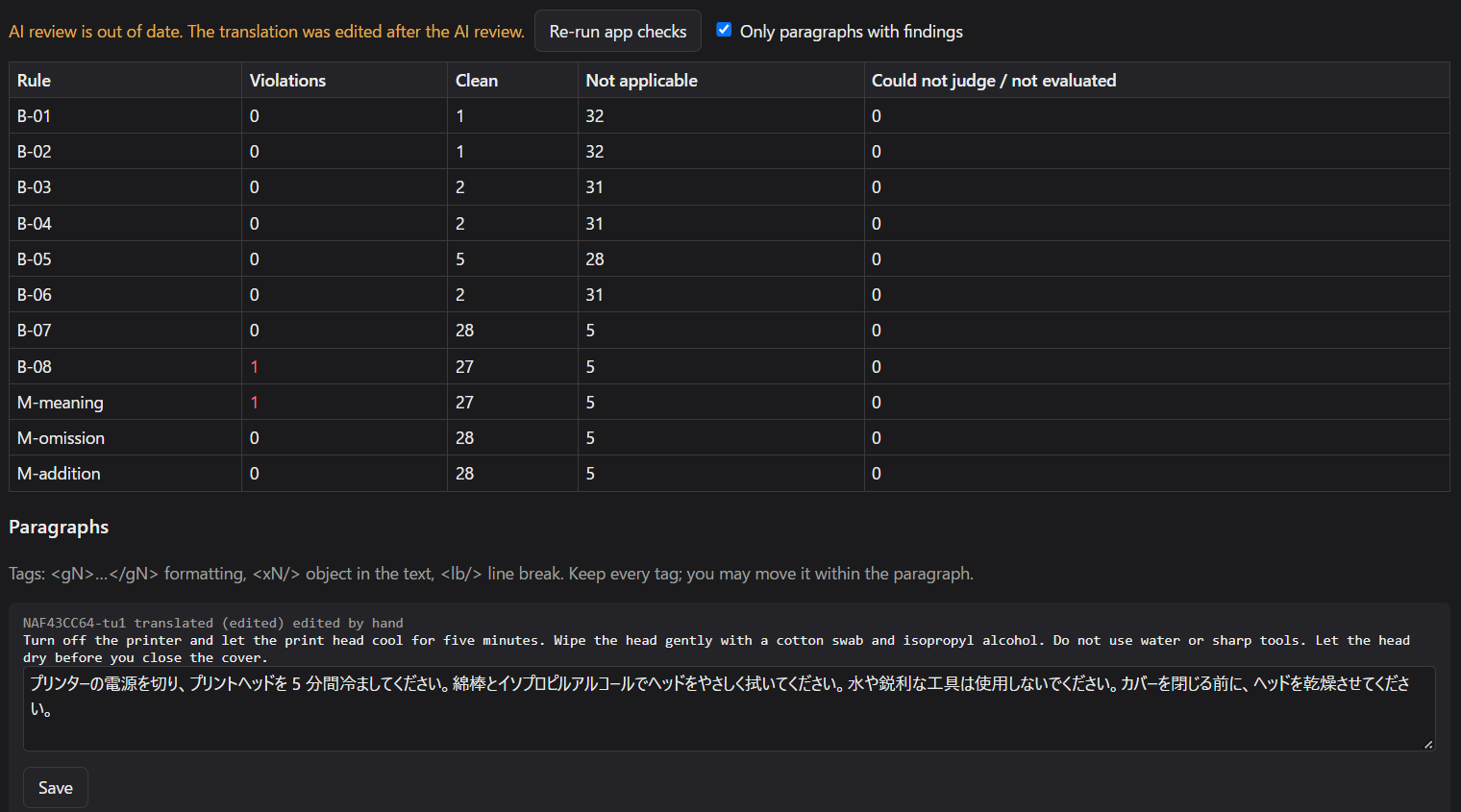
You edit the Japanese text in the app. An edit that removes or breaks a tag is refused. When you save an edit, the app automatically reruns its checks and marks the previous AI review as out of date. Select Run AI review to review all translated paragraphs again.
Export
The app uses Tikal to rebuild the IDML, then runs a structure check against the input. It compares the footnotes, cross-references, index markers, anchored objects, tables and character formatting, and allows a different order inside a paragraph. If the check reports a problem, export is blocked. In automated tests, removing a footnote, a cross-reference, a tracking override or a style definition blocked the export.
The structure check does not establish whether formatting is attached to the intended words. In this brief, B-02 checks the placement of the UI Label style on 緑色. Inspect the other formatting placements in InDesign.
The HTML report has three sections:
- Language and brief: for each rule, the number of violations, checks with no findings, and cases that were not applicable, could not be judged or were not evaluated.
- Codes and structure: the result of the structure check, and any paragraph still in English.
- InDesign layout: always "not checked". The app does not open InDesign.
Open the exported file in InDesign to inspect the layout, including overset text and where the character styles landed.
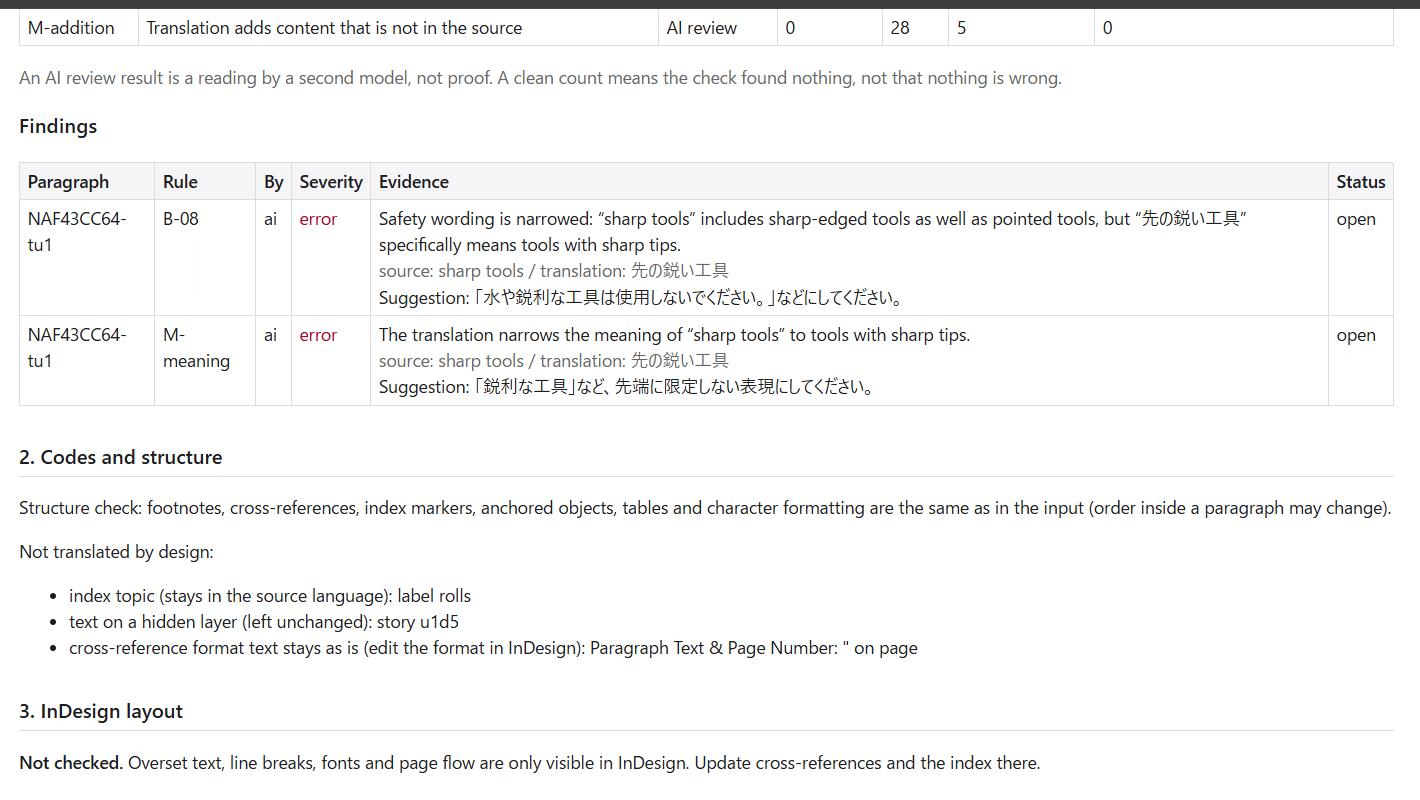
The report records the checks that were run. The translation and the layout still need a person to review them.
What it leaves alone and what it refuses
Text on a hidden layer, index topic names and the words in a cross-reference format, such as "on page," are left as they are. The report lists them. To change "on page", edit the cross-reference format in InDesign.
The app is designed to refuse files that contain features it does not support, including tracked changes, notes, conditional text, XML-tagged content, hyperlinks, endnotes and text variables outside cross-references. It shows the reason.
Limits
- This version runs on Windows and translates IDML files from English to Japanese.
- I tested it on one four-page file. Other files may contain things it refuses or has not seen.
- The models are fixed: Claude for translation and an OpenAI model for review.
- For translation, the app sends the paragraph text and the saved brief, including its term rules, to Anthropic. For review, it sends the source and translated paragraphs to OpenAI with the free-text rules and the built-in checks. Do not use it on documents you are not allowed to send to those services.
- The app keeps your API keys in memory while it runs and does not save them to disk.
- The app is not signed, so Windows SmartScreen may warn you.
Download
The zip is on the Releases page, and the source is in the same repository. The zip includes a Java runtime and Okapi Tikal, so you do not need to install them. It also includes the test file and a saved example that uses a manually prepared translation, which you can open without API keys.