What to Check When Replacing Fonts in a Translated InDesign File
A translated InDesign file often comes back still set in the original fonts. If those fonts lack the Thai or Chinese characters, missing-glyph boxes appear, and the obvious fix is to replace the fonts. A suitable replacement can clear those boxes. It does not finish the job.
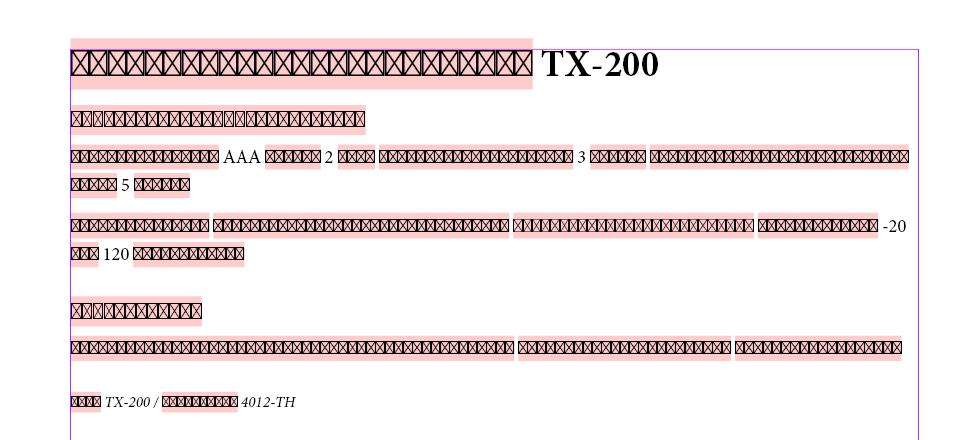
This post covers the settings I review after replacing fonts and how I find any remaining missing glyphs.
Change the font where it is defined
I wrote about this in an earlier post on composite fonts: a font can be set in a paragraph style, a character style, a composite font entry, or directly on the text. If the style owns the font, change the style. Changing the text instead gives you local overrides, and the old font comes back the next time someone clears them.
Find/Replace Font can redefine the styles that use a font, so for one font in one file this is quick. The rest of this post is about what Find Font does not cover.
Map the font styles
In a script test in InDesign 21.5.1 on Windows, I set only the family on text that was Arial Bold and changed it to Microsoft YaHei. The result was YaHei Regular. Arial Bold Italic became YaHei with the style name "Bold Italic", which YaHei does not have.
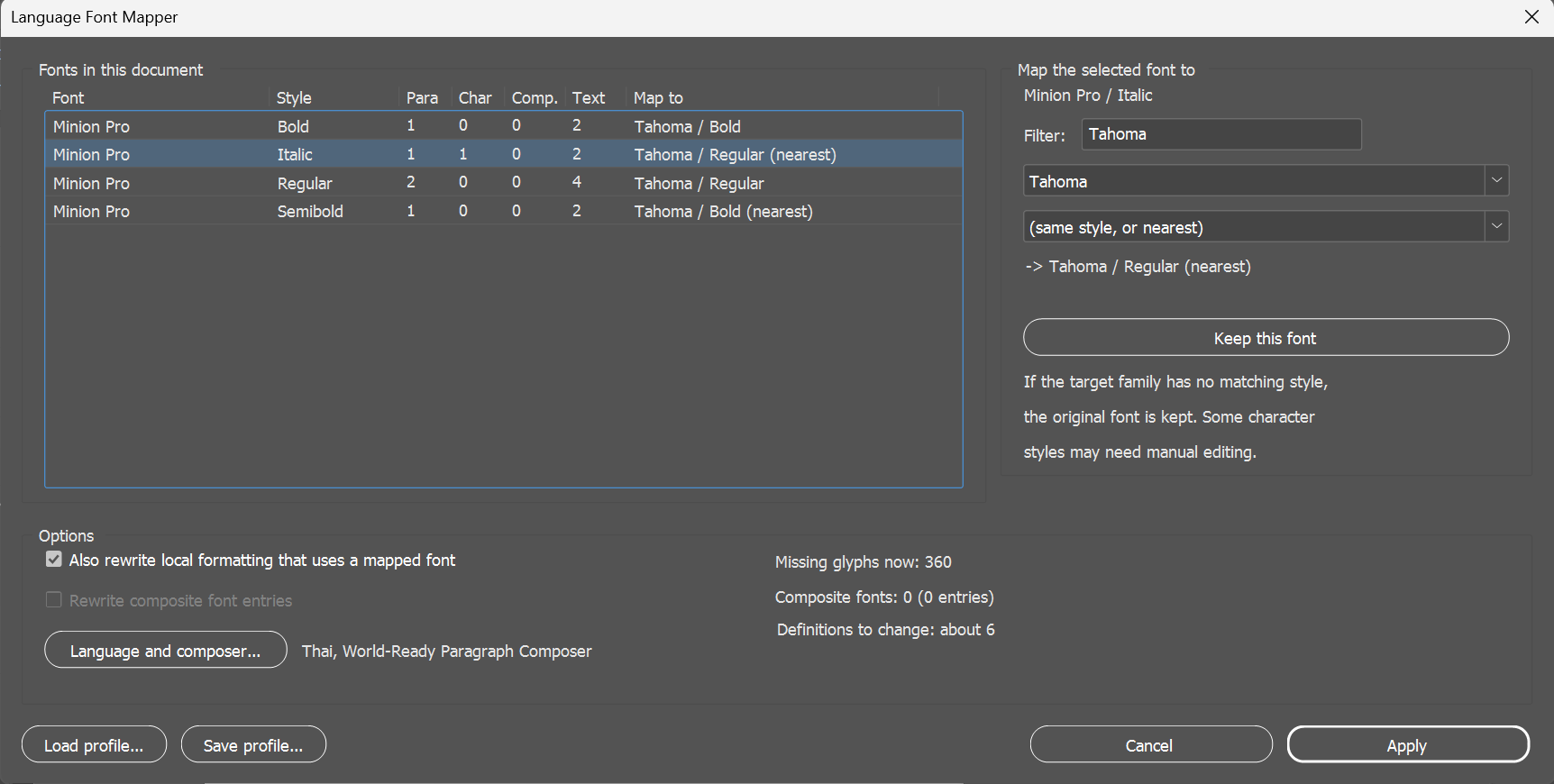
Map the font family and style together. The target family may not have matching weights or italics, so decide how unmatched styles will map, for example Semibold to Bold or Light to Regular, and review any emphasis that is lost on the way.
Set the language and the composer
The language setting selects the spelling dictionary and hyphenation rules. It can come from a paragraph style, a character style or local formatting, so check all three and make sure the Thai text is actually set to Thai.
The Adobe World-Ready Paragraph Composer supports Thai, as well as Arabic and Hebrew. Check which composer the styles use before you judge the line breaks. For Arabic and Hebrew, check the paragraph direction too. It is a separate setting from the composer.
Watch the digits
With Thai, Arabic and similar languages, InDesign can draw native digit forms in place of 0-9. The numbers keep their values, but in a manual or spec sheet the native forms can conflict with what is required for part numbers, voltages or page references.
The Digits setting can live in paragraph and character styles. Set the required digit forms in the relevant styles, with character styles for exceptions.
Composite fonts: edit the entries, then reopen
Chinese and Japanese files often use composite fonts, where one font name covers a CJK font for Han characters and a Latin font for letters and numbers. If the composite font's Latin entry lacks a required glyph, change that entry.
Two things I found in InDesign 21.5.1 on Windows:
- In the Roman (Western) edition, a script could edit the entries of a composite font that was already in the document, but could not apply a new composite font to a style. If your file came from a CJK edition with composite fonts in place, you can work with them. If not, set a CJK font directly in the styles.
- After the entries changed, text that used the composite font was still drawn with the old fonts. Saving, closing and reopening the document showed the new ones. Text that got its font from a paragraph style updated right away. If you count missing glyphs after editing a composite font, reopen first.
Check what is left
Changing fonts does not guarantee that every character has a glyph. A Thai family may lack a symbol the source used, or a CJK font may lack a rare character.
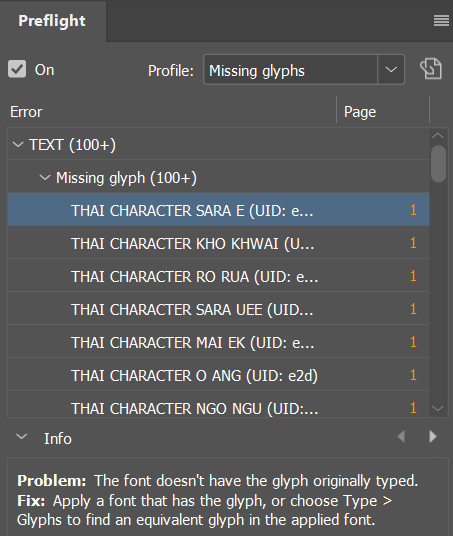
Preflight can list them. Enable the missing-glyph check in the Preflight profile you use, then select that profile in the panel. It lists each missing character with its page. Run it before and after the font change, and compare the individual errors as well as the counts: a font change can fix some and introduce others. Ask the translator before replacing a character.
A zero count still needs a visual check for shaping, line breaks and overset text.
Doing it for every document
For one file, this is a pass through Paragraph Styles, Character Styles, Find/Replace Font and Preflight. Existing composite fonts may also need editing by script. The same steps then repeat for the next document in the same language.
I built Language Font Mapper to repeat these changes across documents. It maps fonts in paragraph styles, character styles and existing composite font entries, with optional language, composer and digit settings. You can save the map for reuse. A trial is available on aescripts.