How a Print PDF Should Be Built from HTML

Recently I had a small but common production problem. A report already existed as a designed HTML page — good typography, a cover, a table of contents — and it needed to become a print-ready PDF. Not a screen capture of the web page, but a proper document: numbered pages, a table of contents whose page references are correct, and no heading left stranded at the bottom of a page.
At first glance this is just "export to PDF." But the more useful question is the same one I keep returning to in production work:
Which layer should own the page numbers and the table of contents?
The Wrong Layers
There are two tempting answers, and both create problems later.
The first is to type the numbers into the table of contents by hand. This works until the content changes. Add a paragraph near the front, and every page reference after it is quietly wrong. The numbers live in the text, but they describe the layout — so they fall out of sync the moment the layout moves.
The second is to use the browser's "Print to PDF." This renders the page faithfully, but it cannot compute that the Methods section begins on page 7, and it cannot restart numbering after the cover. It produces an image of the document, not a paginated document with cross-references.
Neither approach is wrong because of effort. They are wrong because the page numbers and the TOC references are being placed in the wrong layer.
The Source Is the HTML; the PDF Is a Rendering
The useful framing is to treat the HTML as the source and the PDF as one rendering of it. Page numbers and table-of-contents references are not content you author. They are properties of the laid-out pages, and they should be computed at layout time — the same way a screen layout computes where a line wraps.
That is exactly what the CSS Paged Media specification describes, and what Paged.js implements as a browser polyfill — paginating the document in the DOM, which a headless Chrome run then prints to PDF. So instead of editing the document, the print behavior is added as a separate layer on top of it.
The conversion then becomes four predictable steps:
- Read the source HTML.
- Inline local images as data URIs, so the file stays self-contained.
- Overlay the print CSS — page size, margins, page numbers, live TOC.
- Render to PDF with Paged.js. Body text stays selectable and fonts are embedded.
The document's own design is never touched. The overlay only adds the print semantics the screen layout had no reason to carry.
Page Numbers Belong to the Page Box
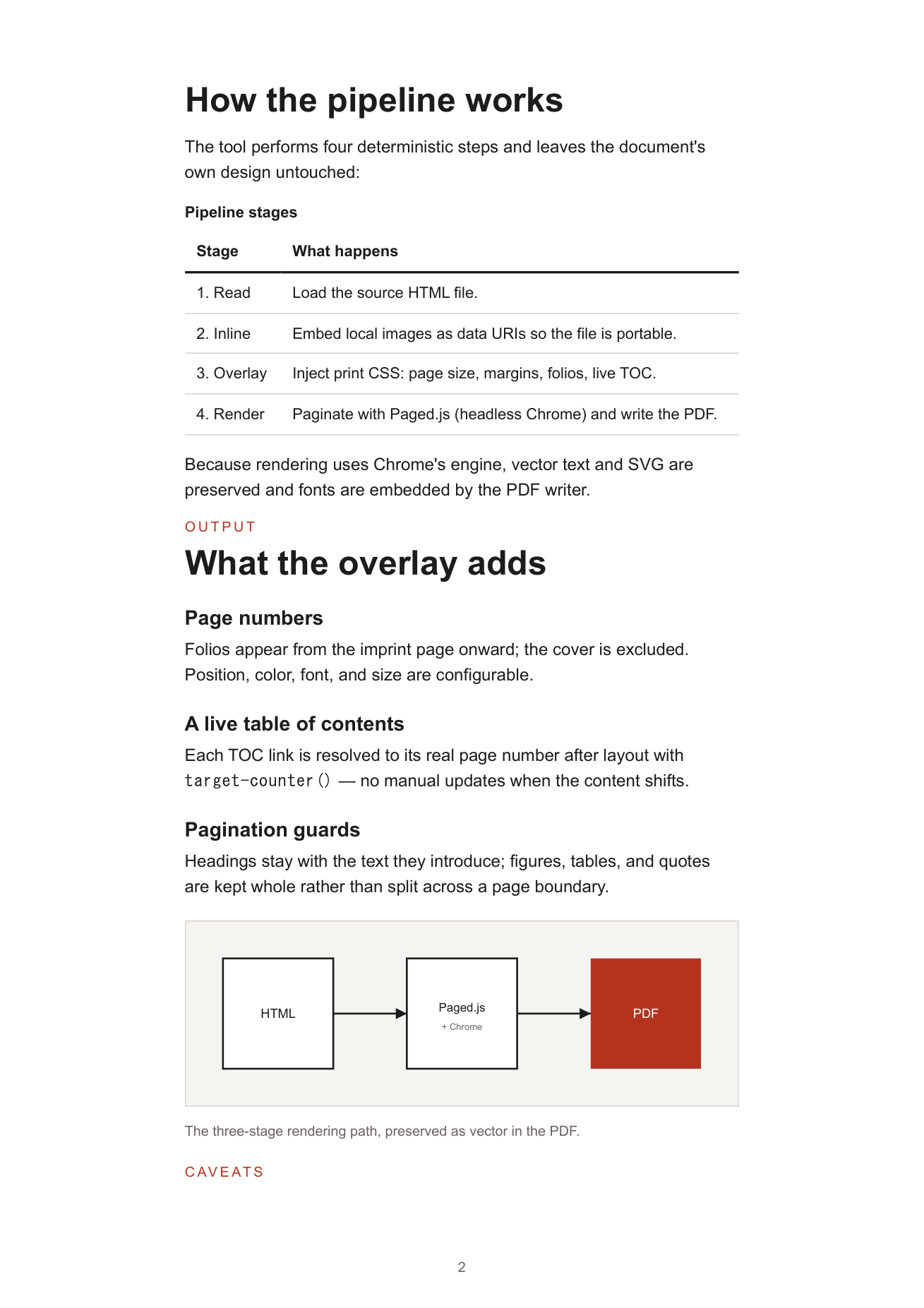
In Paged Media, a page number is not text in the document. It is content of the page box itself, so it sits in the margin and updates automatically:
@page {
  size: A4;
  margin: 18mm;
  @bottom-center { content: counter(page); }
}

/* the cover is its own page, full bleed, with no number */
.cover { page: cover; break-after: page; }
@page cover { margin: 0; @bottom-center { content: none; } }

/* the imprint is the first page that carries a number: restart the count here */
.imprint { counter-reset: page 1; }
Because the folio is a property of the page rather than the text, suppressing it on the cover and restarting the count at the imprint are small, declarative changes — not manual edits to chase on every revision.
A Table of Contents Computed at Layout Time
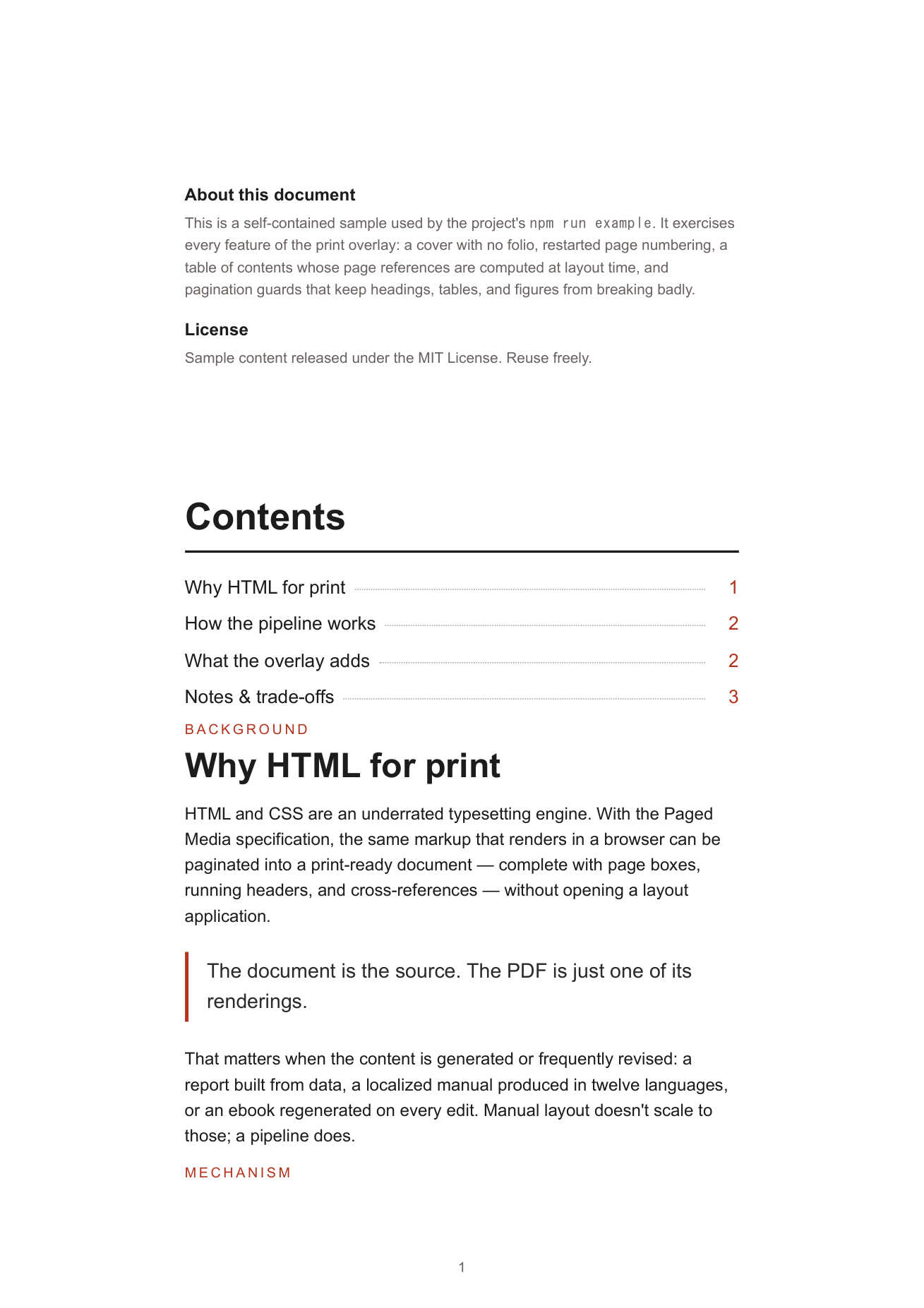
This is the part that surprises people. Each TOC entry is an ordinary link to an anchor in the document. The page number is filled in after the layout is known, with target-counter:
.toc a[href^="#"]::after {
  content: target-counter(attr(href), page);
}
Move a section, regenerate the PDF, and every number is correct again. The reference describes the layout, and now it is derived from the layout, so the two can no longer drift apart.
Where This Approach Has Limits
A few things are worth knowing before you rely on it:
- CSS Grid does not fragment across pages. A grid block jumps whole to the next page and can leave its heading stranded. When a long section needs to flow, multi-column layout (
column-count) paginates cleanly where grid does not. - Paged.js cannot resolve
var()inside@pagerules. Page geometry has to be written with literal values. - Headings set in a web font render correctly but may not be selectable as text. When verifying output, check the body text and a rendered page image rather than the headline.
None of these are blockers. They are just places where the print layer behaves differently from the screen, and knowing them up front saves an afternoon.
A Note on Tools
Prince XML handles this category of work very well, but it is commercial and its free tier watermarks the output. Paged.js is open source and adds no watermark, which is why I reach for it when the goal is a repeatable conversion rather than a single file. The browser's own "Print to PDF" remains fine for a quick one-off — it simply cannot compute references or restart folios.
The Script
I packaged the workflow as a small command-line tool and published it:
https://github.com/linguist-coder/html-to-print-pdf (MIT)
It takes a designed HTML file and produces the PDF, driven by a small config for page size, margins, the cover, where numbering restarts, and which links form the table of contents. The repository includes a self-contained sample report — a cover, an imprint page, a computed TOC, a table, and a figure — so the whole thing runs end to end:
git clone https://github.com/linguist-coder/html-to-print-pdf.git
cd html-to-print-pdf
npm install
npm run example     # -> examples/report/report.pdf
The takeaway is the same structural point I started with. The PDF is a rendering of the document, not the document itself. Once the page numbers and the table of contents are computed at layout time instead of typed by hand, regenerating the file after an edit stops being manual work — which is the whole point of treating the HTML, and not the PDF, as the source.